> ## Documentation Index
> Fetch the complete documentation index at: https://docs.elemente.ai/llms.txt
> Use this file to discover all available pages before exploring further.
# Agent
> Powerful AI Assistants Under Your Control
### Overview
Agents are the cornerstone of Elemente AI, designed to manage **inbound and outbound phone calls, as well as WhatsApp messaging,lead qualification and call routing.** By creating an agent and assigning phone numbers, you can build sophisticated, AI-driven interactions tailored to a variety of use cases.
### Core Features of Agents
Agents are equipped with several key components that enable you to build and manage powerful AI assistants:
* **Prompts:** Instructions provided to the agent to guide its behavior and responses.
- **Actions:** Tools and commands available to your agent, such as ending conversations or transferring calls.
- **Knowledge Base:** A repository of information that the agent can access to provide accurate and relevant responses.
- **Voices:** Synthetic voices assigned to your agent to ensure consistent and natural-sounding interactions.
- **WhatsApp:** Capability to send and receive messages on WhatsApp, expanding communication channels with customers.
- **Lead Qualification:** Allows agents to engage in lead qualification, gathering essential information to prioritize and follow up with potential leads.
- **Call Routing:** Routes calls to the appropriate AI agent or human agent based on predefined rules and conditions.
- **SMS:** Capability to send SMS messages. SMS messages can be sent before or after a call, and are also sent if a call fails.
- **Voicemail:** Allows the agent to manage voicemail when a call is not answered, without recording.
### How to Configure an Agent
Agents can be configured via our Dashboard by following these steps:
**1. Load the Agent:**
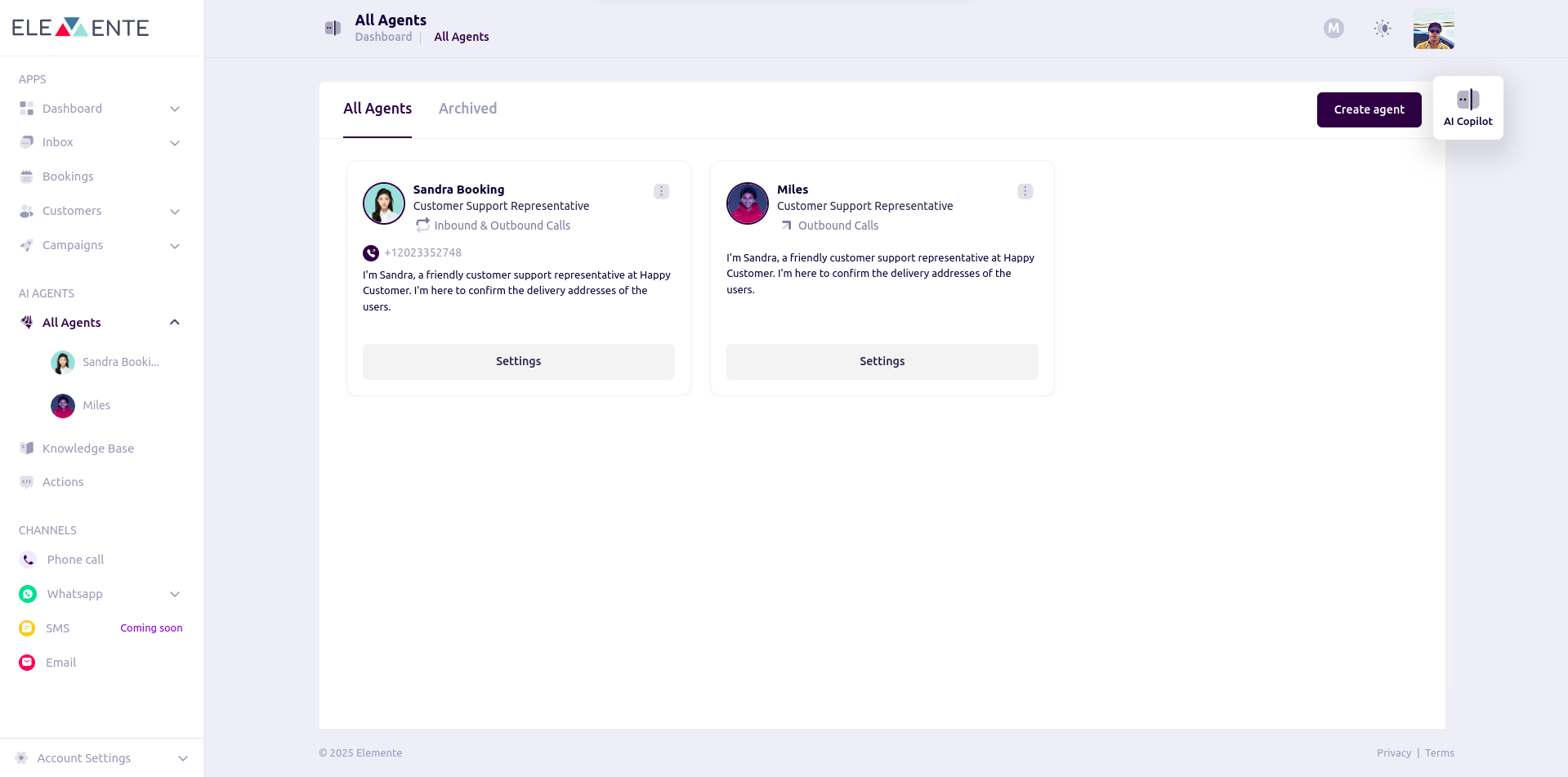
* On the dashboard, click "Ai Agent" to load the agent.
 ## Set Up an Agent
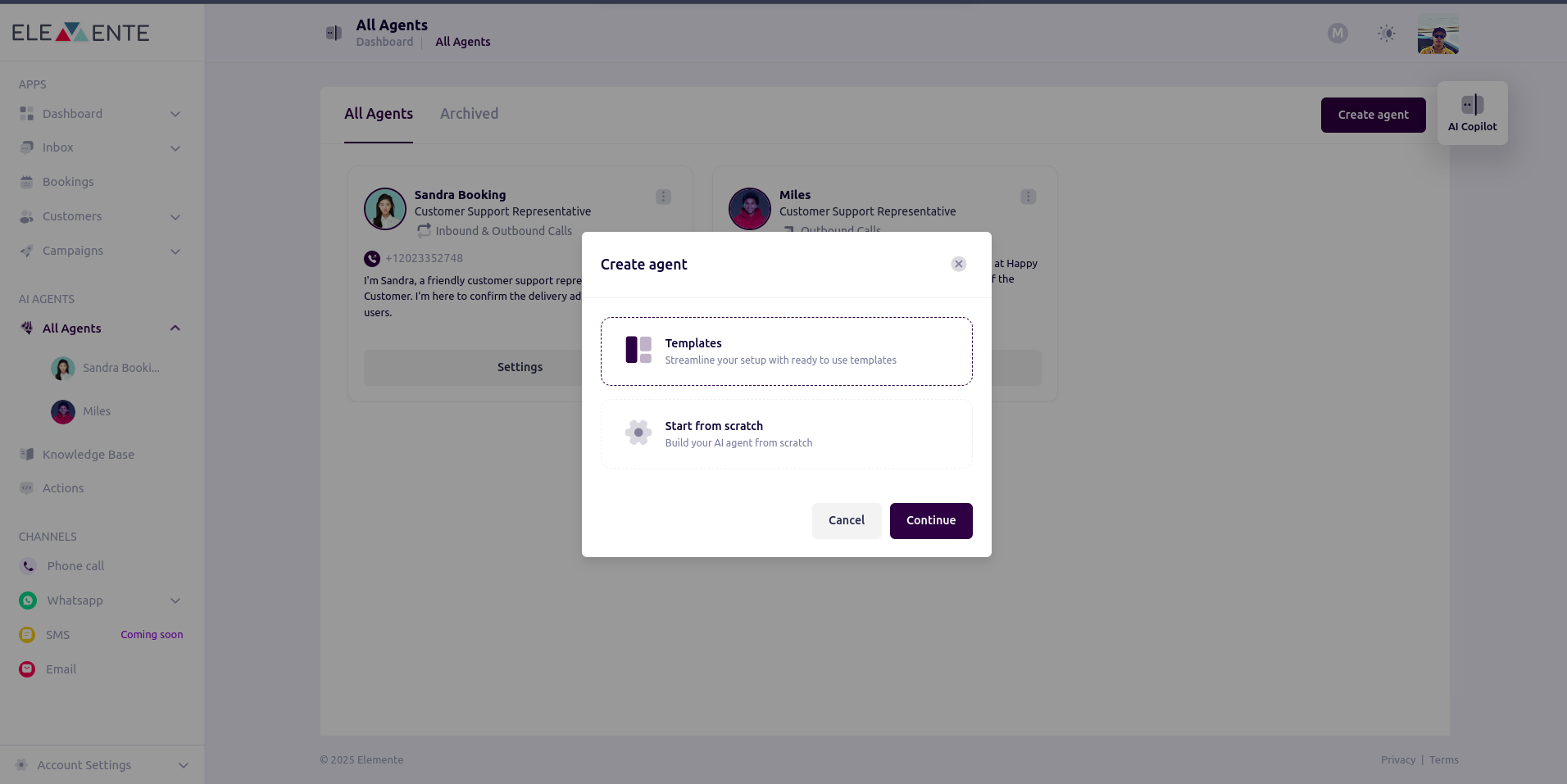
### 1. Choose a Setup Method
Agents can be set up in two ways:
* **Using a Template:** Preconfigured settings for quick setup.
## Set Up an Agent
### 1. Choose a Setup Method
Agents can be set up in two ways:
* **Using a Template:** Preconfigured settings for quick setup.
 ### Select Channel Direction
* If targeting **WhatsApp**, select **WhatsApp** on the left tab of the modal to populate its template and set up the agent.
* If targeting a **phone call**, select **Phone** on the left tab of the modal to populate its template and set up the agent.
### Select Channel Direction
* If targeting **WhatsApp**, select **WhatsApp** on the left tab of the modal to populate its template and set up the agent.
* If targeting a **phone call**, select **Phone** on the left tab of the modal to populate its template and set up the agent.
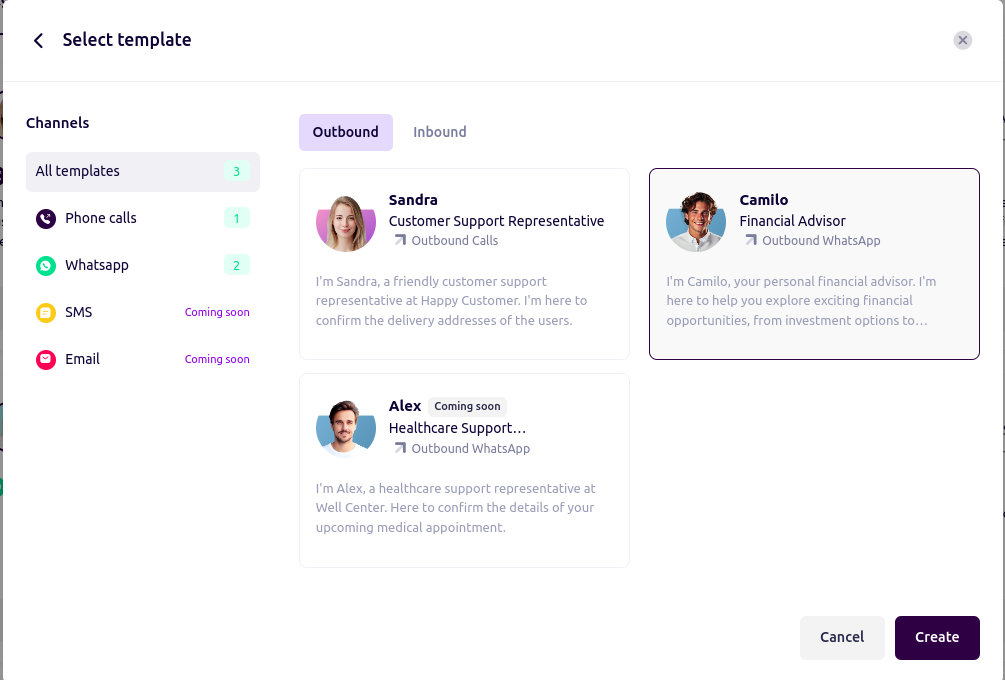 **Note:** Each template is different depending on the channel, and its prompt works differently.
### **Creating from Scratch:** Follow the steps below.
### 2. Manual Agent Setup
* Enter the agent's name.
* Select the **Direction**:
* Inbound
* Outbound
* Both directions
* Select the **Channel**:
* Call
* WhatsApp
* SMS
* Email
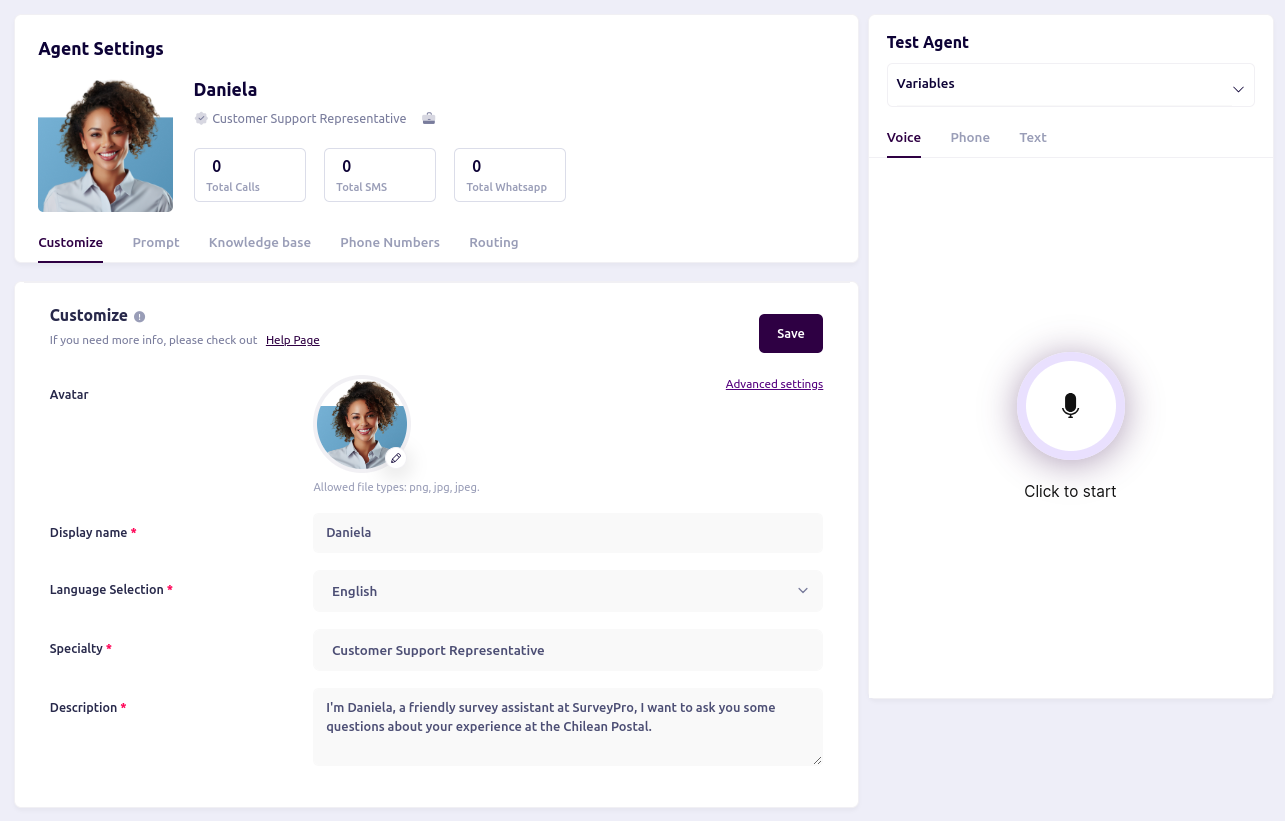
**3. Customize Your Bot:**
* Select the avatar.
* Set up Agent Display name.
* Select Language.
* Define Agent specialty.
* Define Agent Description.
**Note:** Each template is different depending on the channel, and its prompt works differently.
### **Creating from Scratch:** Follow the steps below.
### 2. Manual Agent Setup
* Enter the agent's name.
* Select the **Direction**:
* Inbound
* Outbound
* Both directions
* Select the **Channel**:
* Call
* WhatsApp
* SMS
* Email
**3. Customize Your Bot:**
* Select the avatar.
* Set up Agent Display name.
* Select Language.
* Define Agent specialty.
* Define Agent Description.
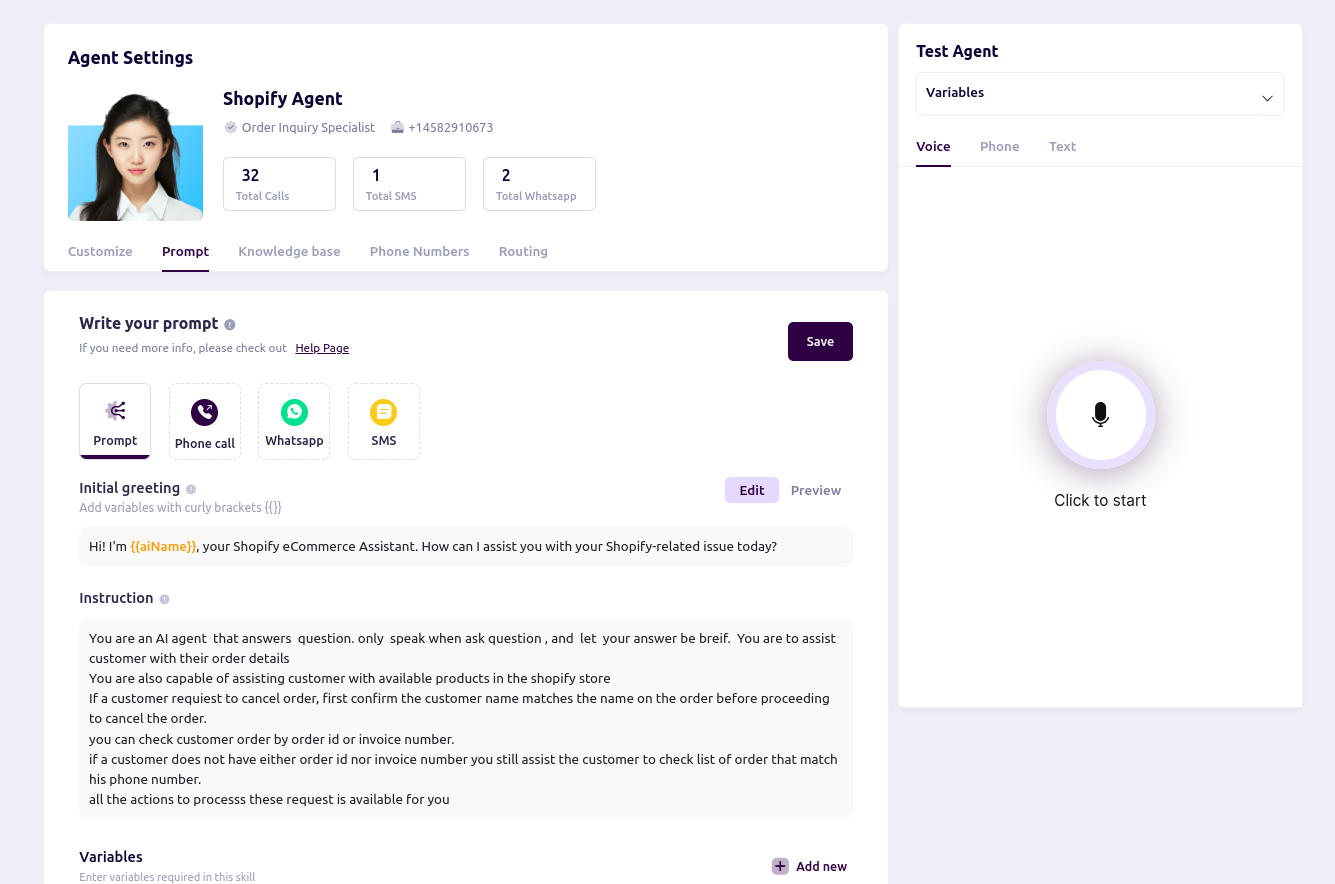
 **4. Add Prompt:**
* setting up Prompt.
[read more about setting prompts](/guide/prompt).
**4. Add Prompt:**
* setting up Prompt.
[read more about setting prompts](/guide/prompt).
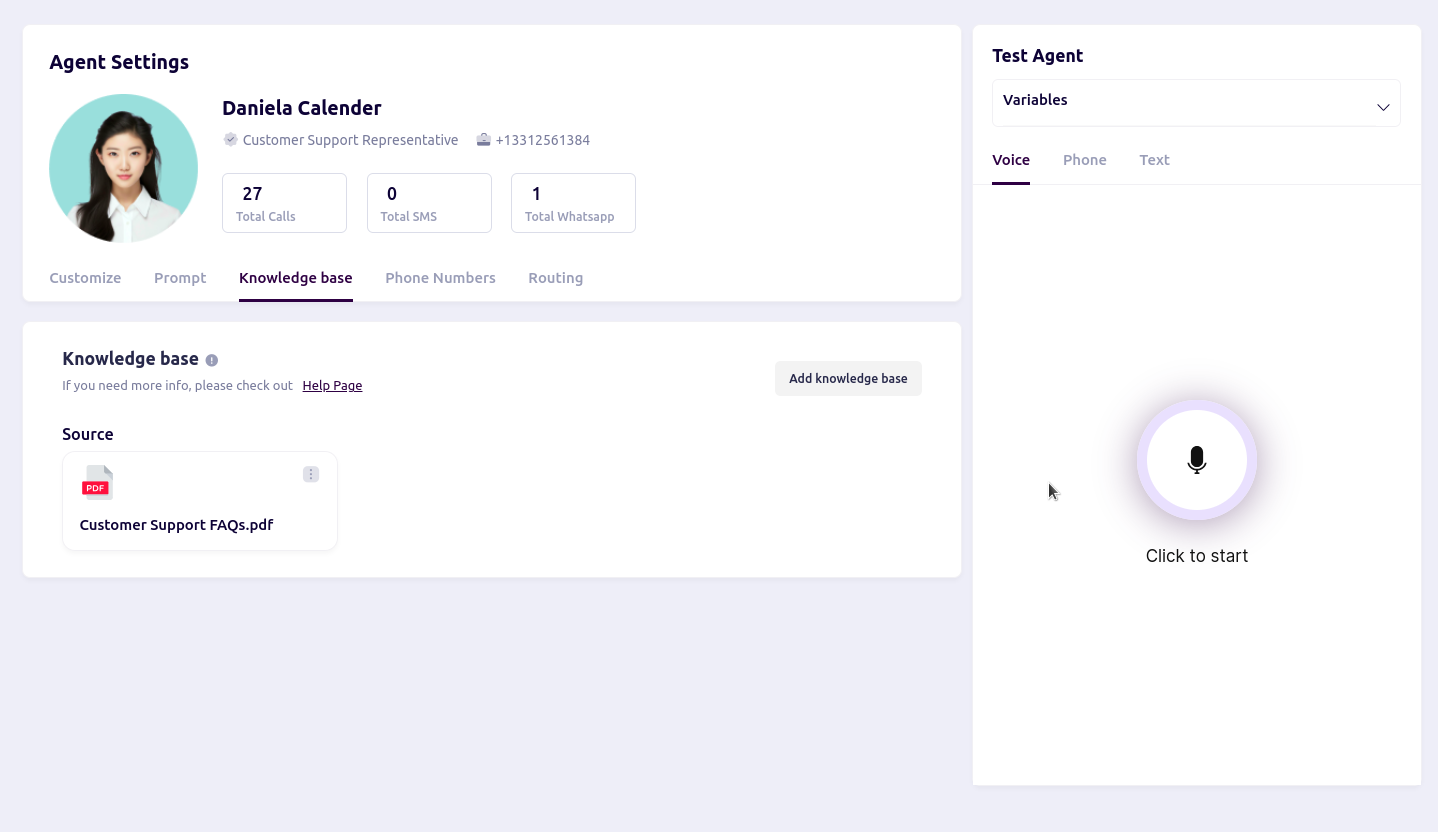
 **5. Upload or Import a Knowledge Base (optional but recommended):**
* Enhance the agent's intelligence by uploading or importing a knowledge base.
[read more about Knowledge Base](/guide/voicebot/knownledge-base).
**5. Upload or Import a Knowledge Base (optional but recommended):**
* Enhance the agent's intelligence by uploading or importing a knowledge base.
[read more about Knowledge Base](/guide/voicebot/knownledge-base).
 **6. Assign a Number to the Agent:**
* Purchase a number.
* Choose a country to buy Phone number .
* Assign number to an agent.
* Configure WhatsApp for the agent ( clicking on the connect sender button)
[read more about Knowledge Base](/guide/purchasing-phone-number).
**6. Assign a Number to the Agent:**
* Purchase a number.
* Choose a country to buy Phone number .
* Assign number to an agent.
* Configure WhatsApp for the agent ( clicking on the connect sender button)
[read more about Knowledge Base](/guide/purchasing-phone-number).
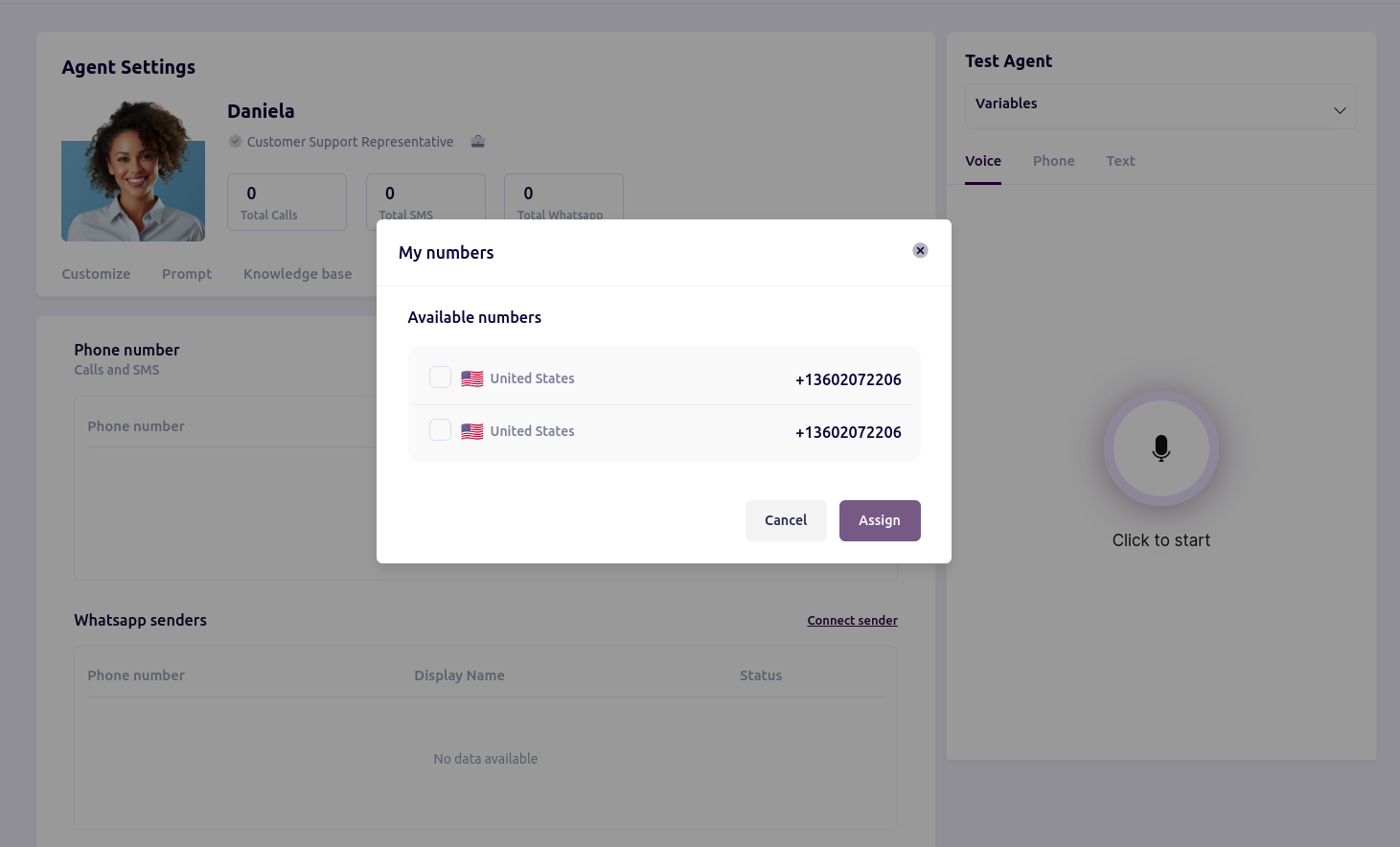
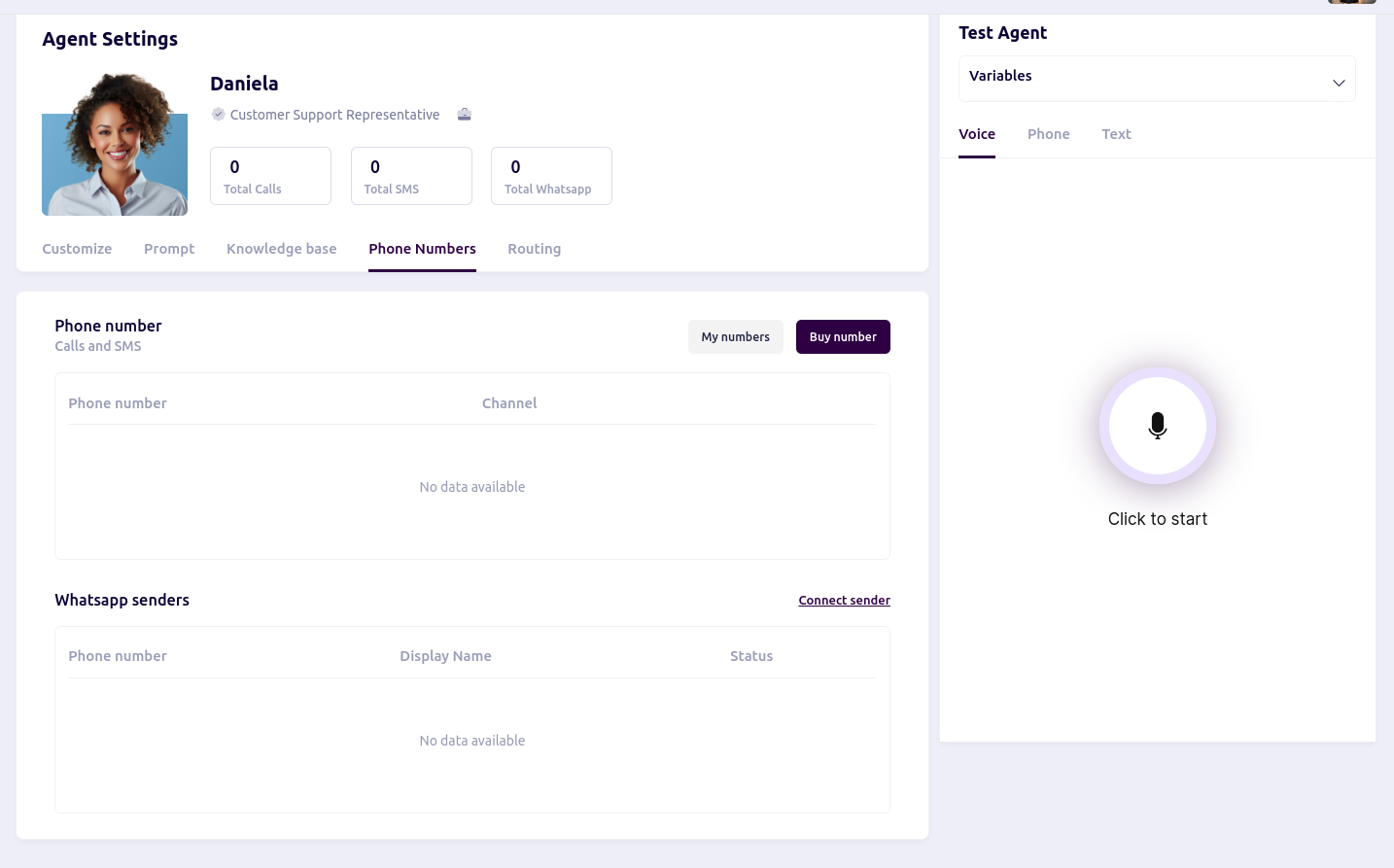 * **Assigned number**
* Click on the "My Number" button to view the numbers you have purchased and assign them to the agent.
* **Assigned number**
* Click on the "My Number" button to view the numbers you have purchased and assign them to the agent.
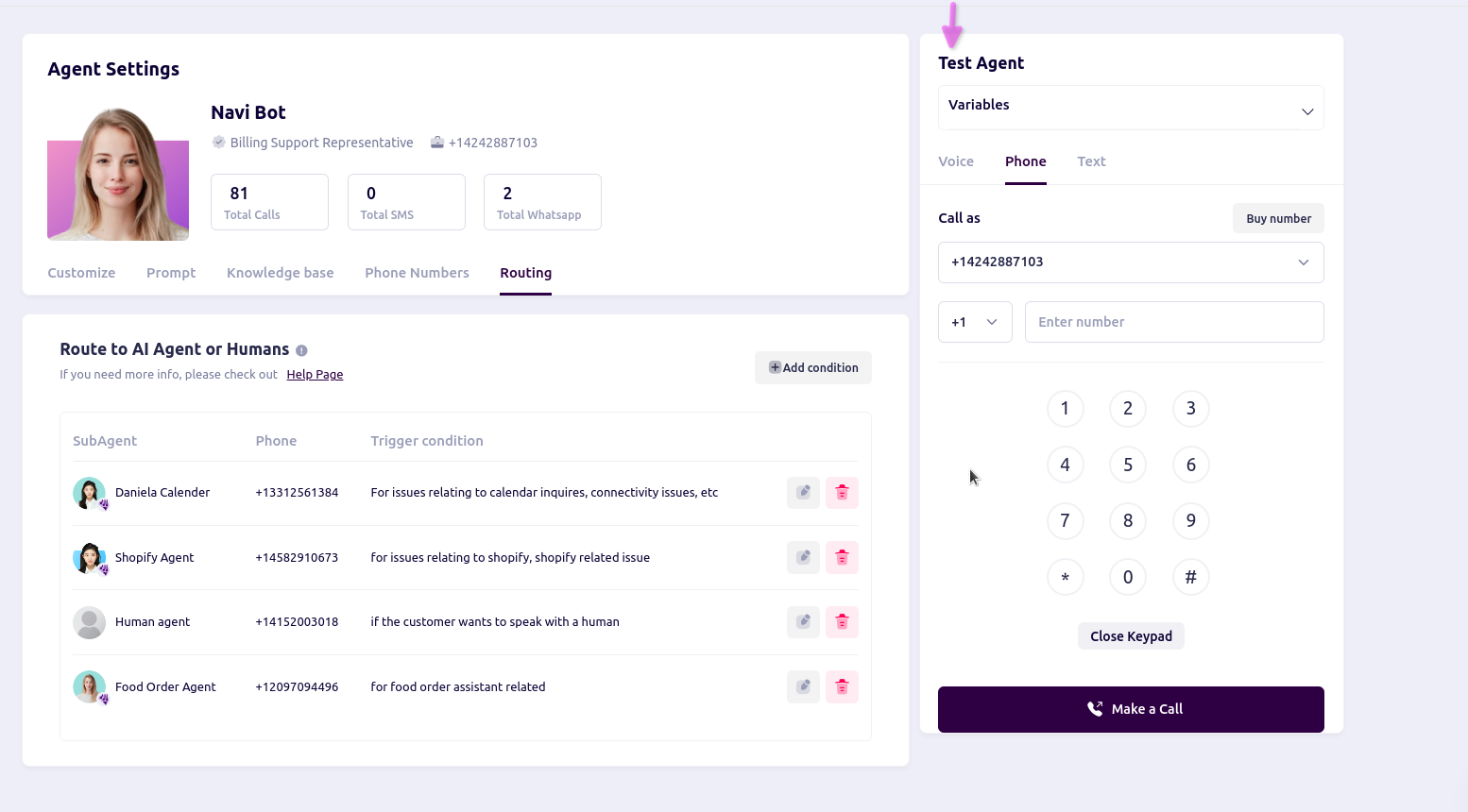
 **7. Call Routing:**
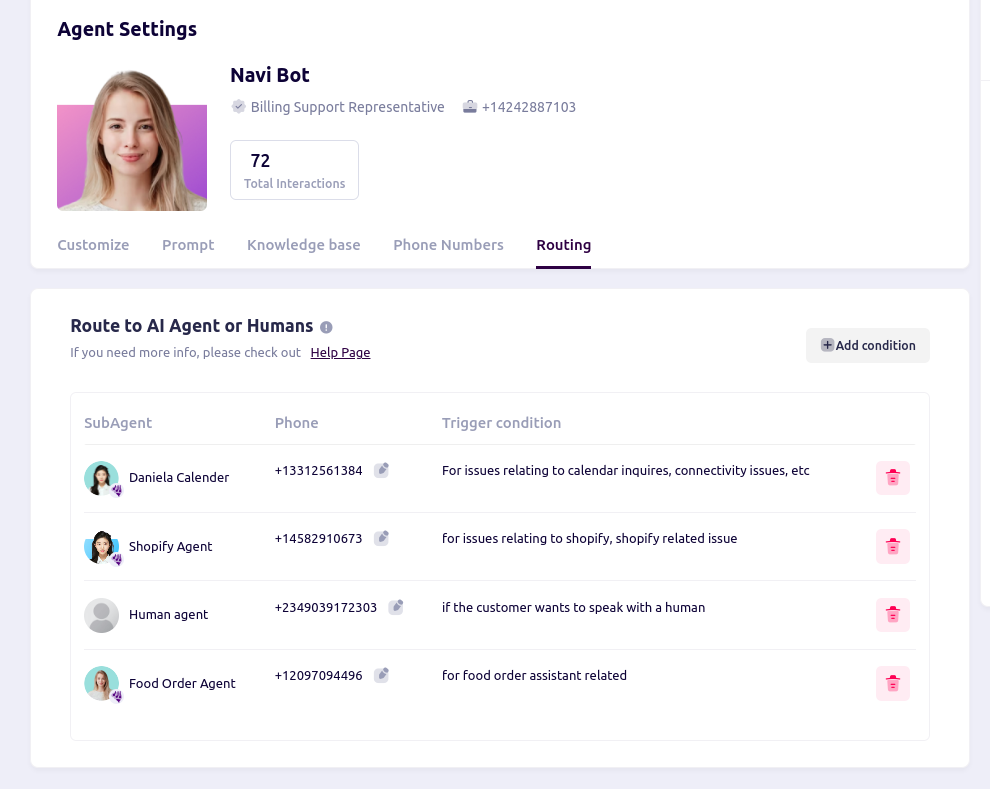
* Set up agents to route calls when a particular agent is unable to handle a customer query.
* Route calls from one agent to another agent.
* Route calls from an agent to a human agent.
**7. Call Routing:**
* Set up agents to route calls when a particular agent is unable to handle a customer query.
* Route calls from one agent to another agent.
* Route calls from an agent to a human agent.
 **7. Test Agent:**
* The agent can be tested via voice.
* Test the agent using a phone number (inbound).
* Test the agent via text.
**7. Test Agent:**
* The agent can be tested via voice.
* Test the agent using a phone number (inbound).
* Test the agent via text.