> ## Documentation Index
> Fetch the complete documentation index at: https://docs.elemente.ai/llms.txt
> Use this file to discover all available pages before exploring further.
# Billing Plans
> Manage your billing plans, invoices, and payment methods efficiently.
## Navigating to Billing Settings
To manage your billing plans and payments, follow these steps:
1. On the General sidebar > Account settings.
2. **Access Billing:** Navigate to the **Billing** section from the overview menu.
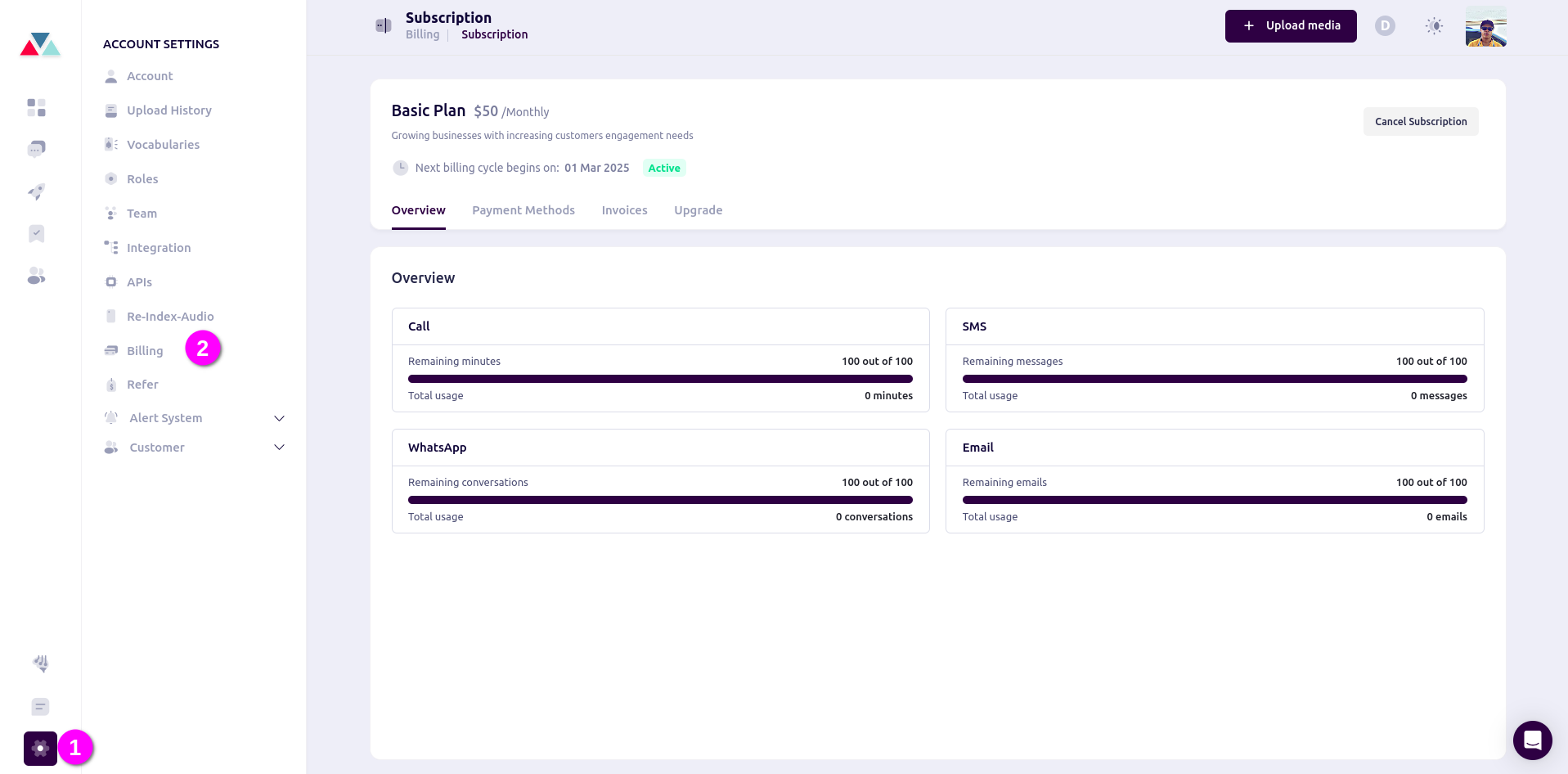 In the **Billing** section, you will find details about your current plan, invoices, payment methods, and an overview of call usage. You will also have the option to upgrade your plan if needed.
## Billing Overview
### **Current Plan**
Displays details about your existing subscription, including the plan type, renewal date, and included features.
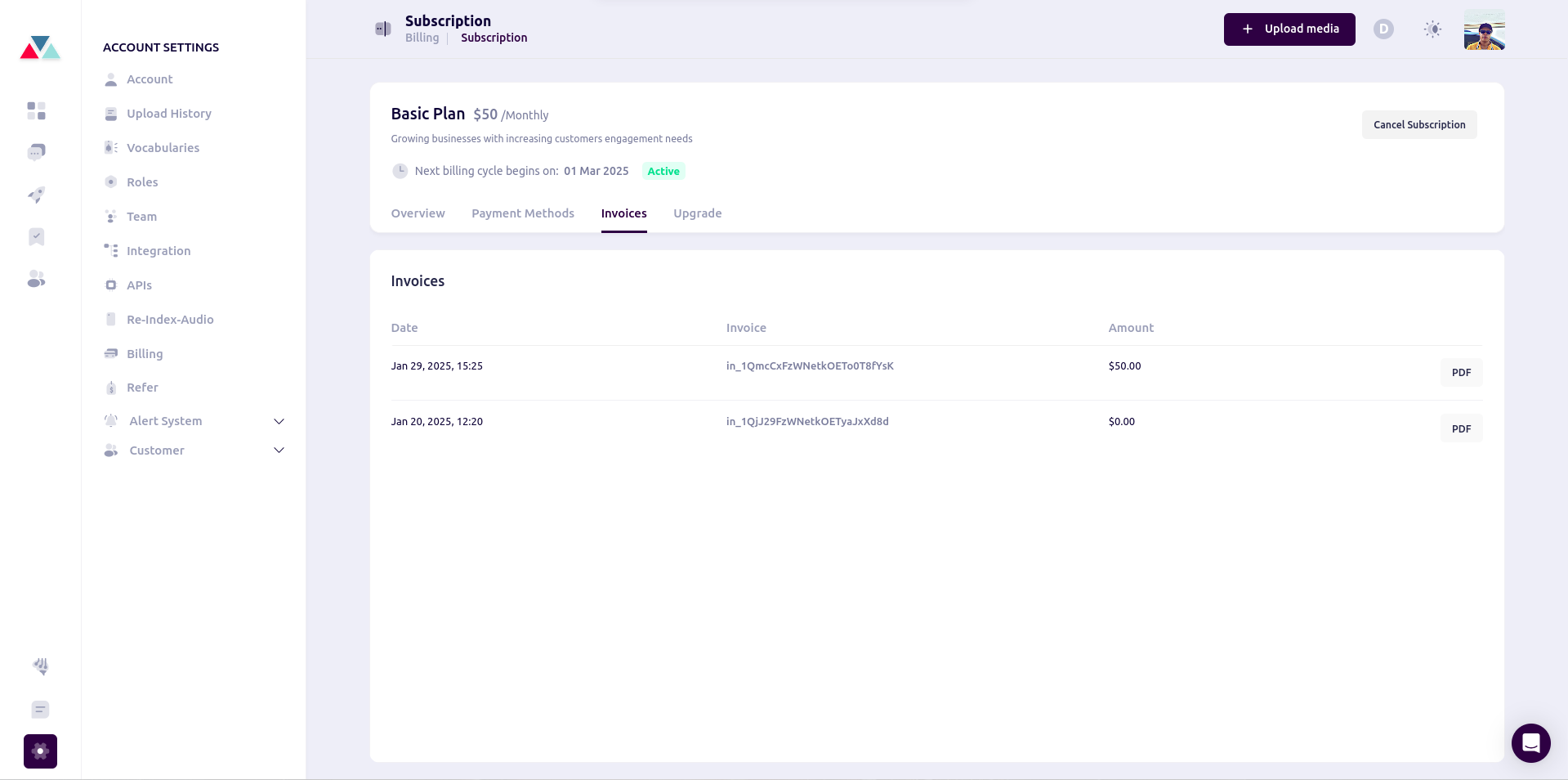
### **Invoices**
Access past and current invoices for your subscription. You can download invoices for your records or review billing history.
In the **Billing** section, you will find details about your current plan, invoices, payment methods, and an overview of call usage. You will also have the option to upgrade your plan if needed.
## Billing Overview
### **Current Plan**
Displays details about your existing subscription, including the plan type, renewal date, and included features.
### **Invoices**
Access past and current invoices for your subscription. You can download invoices for your records or review billing history.
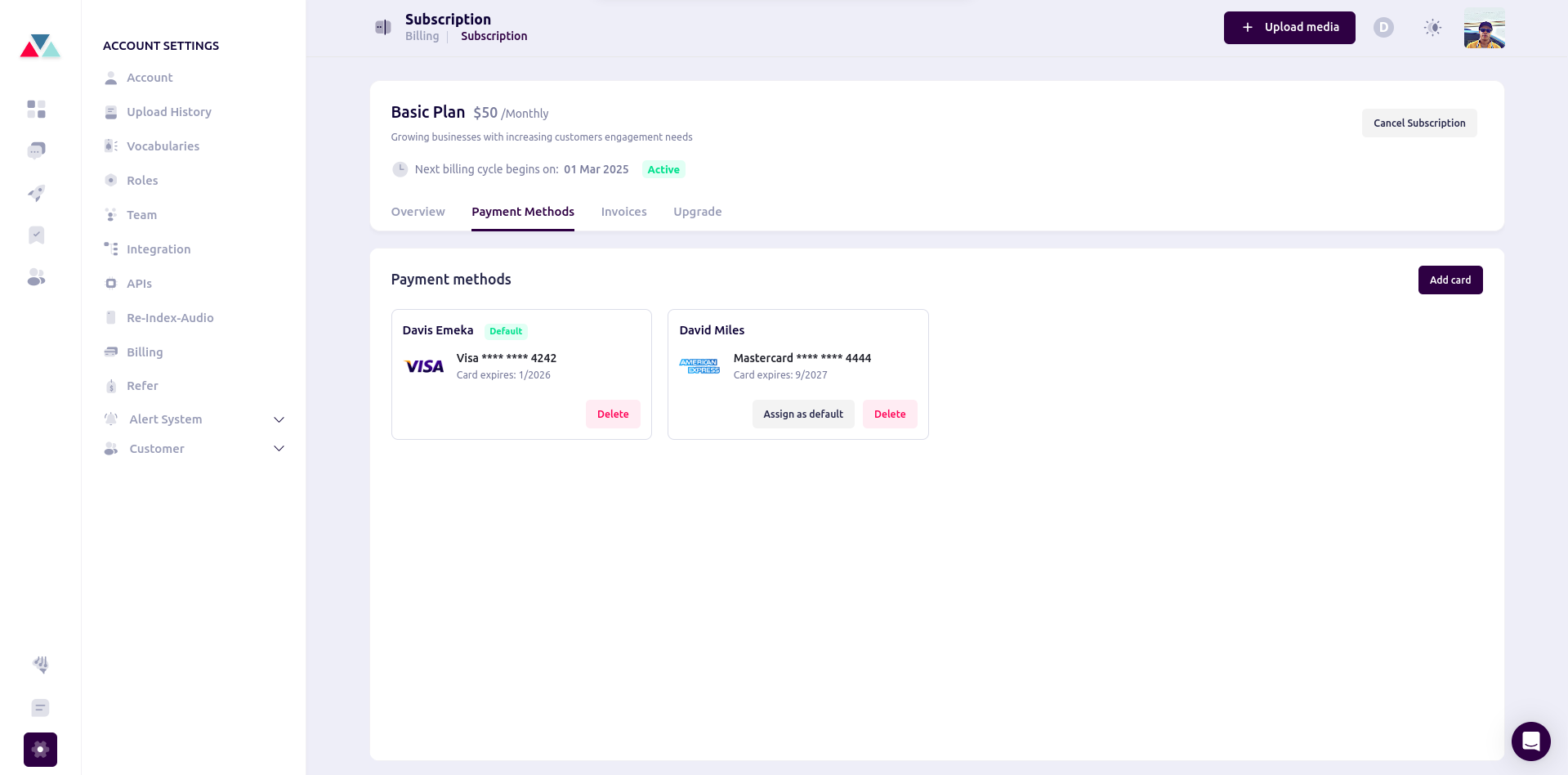
 ### **Payment Methods**
Manage and update your payment options, including credit cards and other accepted payment methods.
### **Payment Methods**
Manage and update your payment options, including credit cards and other accepted payment methods.
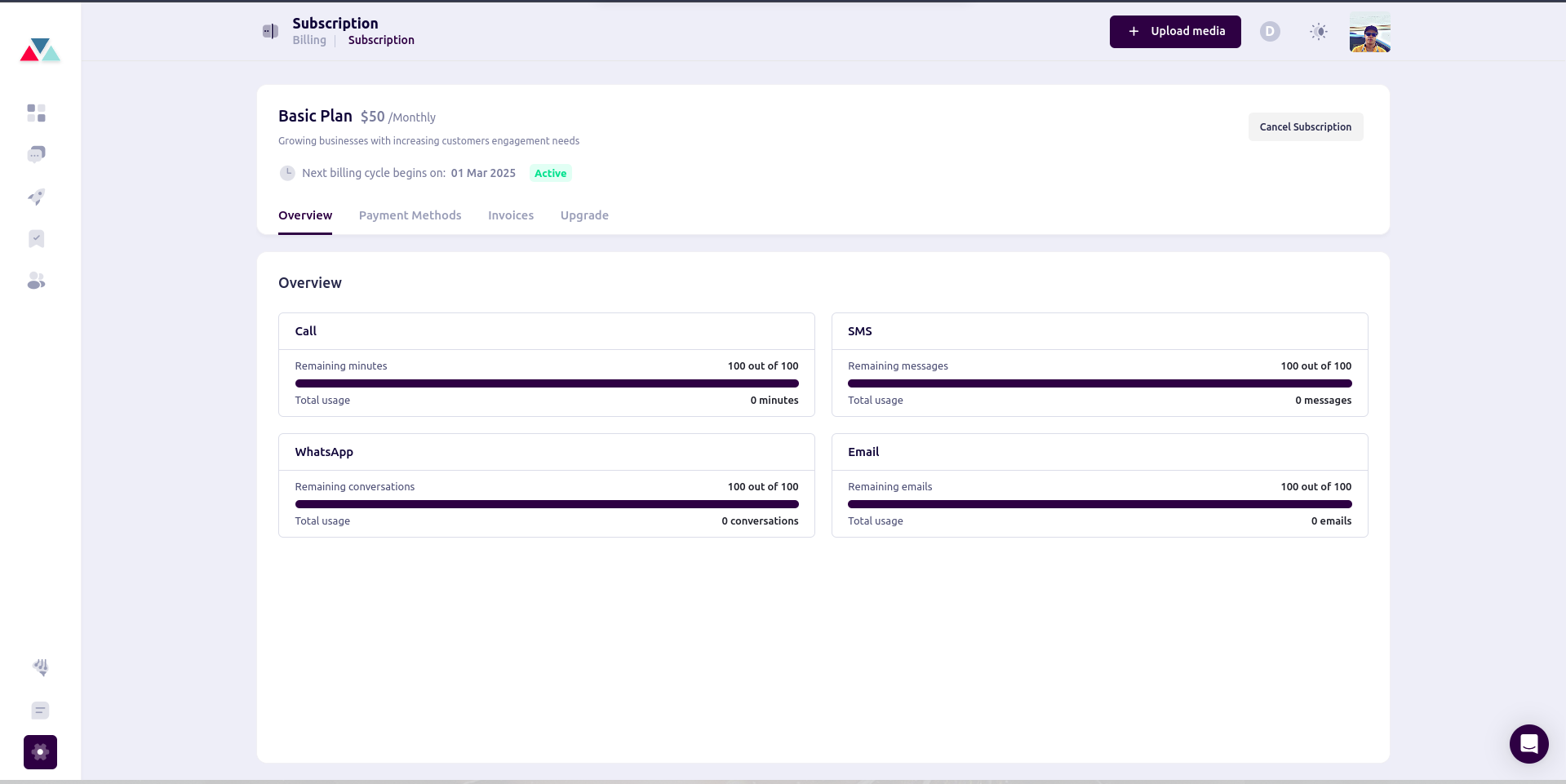
 ### **Call Usage Overview**
Monitor call activities and usage statistics to keep track of your billing-related call expenses.
### **Call Usage Overview**
Monitor call activities and usage statistics to keep track of your billing-related call expenses.
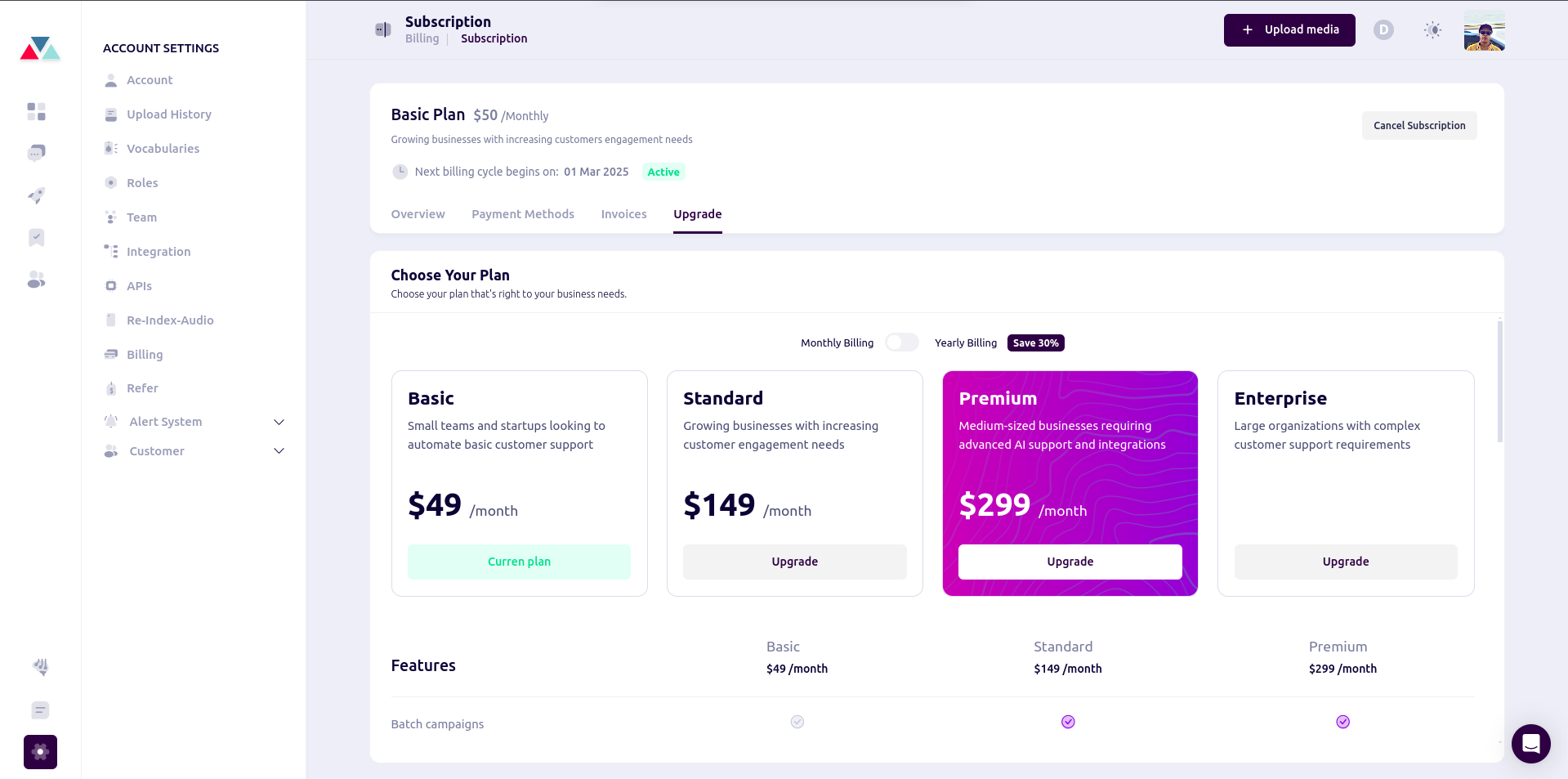
 ## Upgrading Your Plan
If you need to access more features, you can upgrade your plan:
1. Click on **Upgrade Plan** in the **Billing** section.
2. Select your preferred plan based on your needs.
3. Confirm and complete the payment process.
Once upgraded, the new plan features will be applied immediately to your account.
## Managing Payment Methods
To update your payment details:
1. Navigate to the **Payment Methods** section under Billing.
2. Click **Add Payment Method** to enter a new card or update existing details.
3. Save your changes to ensure future transactions are processed smoothly.
## Upgrading Your Plan
If you need to access more features, you can upgrade your plan:
1. Click on **Upgrade Plan** in the **Billing** section.
2. Select your preferred plan based on your needs.
3. Confirm and complete the payment process.
Once upgraded, the new plan features will be applied immediately to your account.
## Managing Payment Methods
To update your payment details:
1. Navigate to the **Payment Methods** section under Billing.
2. Click **Add Payment Method** to enter a new card or update existing details.
3. Save your changes to ensure future transactions are processed smoothly.
 ## Downloading Invoices
To download an invoice:
1. Open the **Invoices** section in Billing.
2. Select the invoice you want to download.
3. Click **Download** to save the invoice as a PDF.
By managing your billing settings efficiently, you can ensure smooth transactions and uninterrupted access to your subscription features.
## Downloading Invoices
To download an invoice:
1. Open the **Invoices** section in Billing.
2. Select the invoice you want to download.
3. Click **Download** to save the invoice as a PDF.
By managing your billing settings efficiently, you can ensure smooth transactions and uninterrupted access to your subscription features.