> ## Documentation Index
> Fetch the complete documentation index at: https://docs.elemente.ai/llms.txt
> Use this file to discover all available pages before exploring further.
# Campaigns
> Campaigns: Bulk Calls, WhatsApp, and SMS
### Overview
The Campaigns Feature is designed to help you create, manage, and execute multi-channel marketing campaigns efficiently. Whether you want to use Calls, WhatsApp, or SMS, this feature provides a streamlined process for reaching your audience effectively.
With this tool, you can automate outbound interactions, ensuring consistent messaging while saving time and enhancing productivity.
## Key Benefits of the Campaigns Feature:
* **Time Efficiency:** Streamline your workflows by automating outbound communication across multiple channels.
*
* **Consistency:** Maintain uniform messaging across Calls, WhatsApp, and SMS for better engagement.
*
* **Enhanced Productivity:** Focus on meaningful interactions by eliminating manual setup for each interaction.
## How to Create a Campaign
**Step 1: Access the Campaigns Feature**
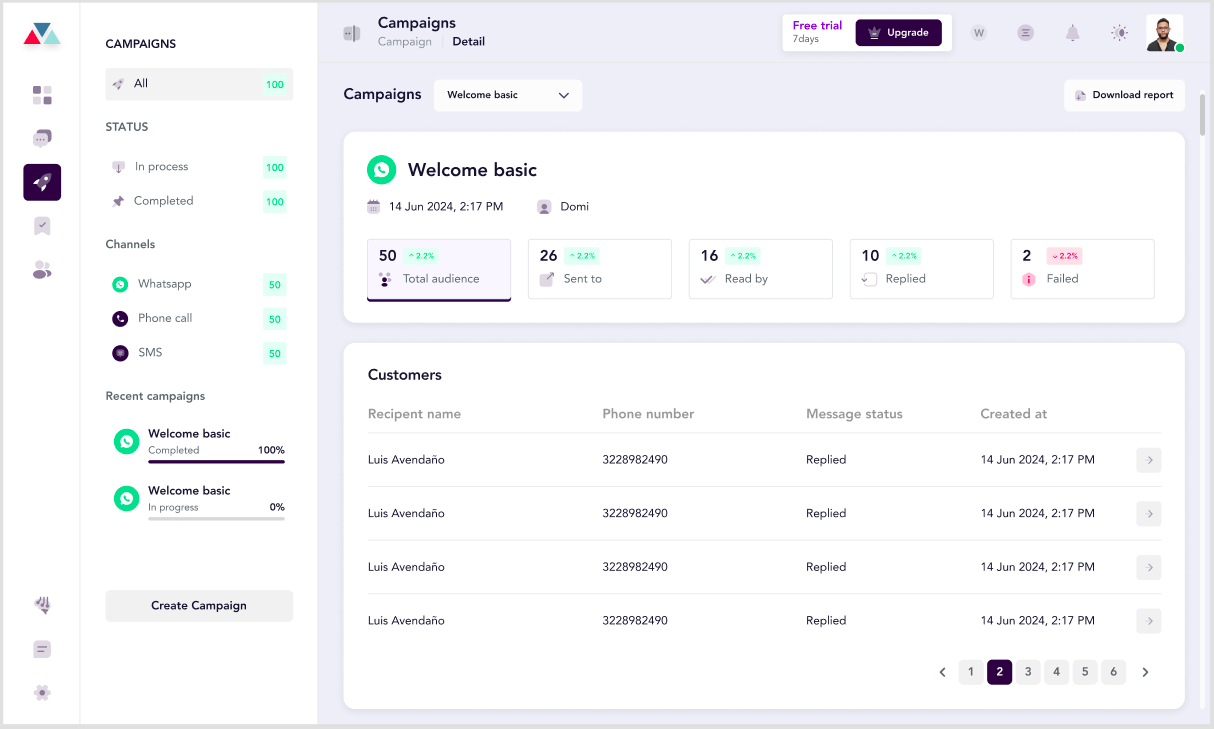
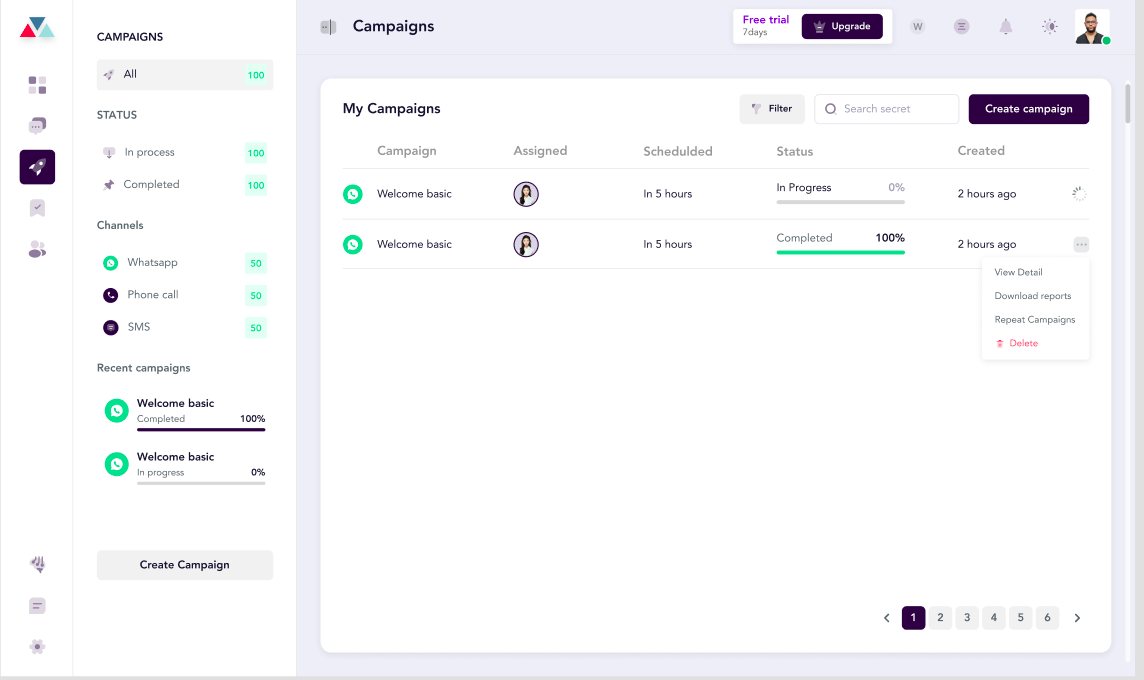
1. Navigate to the **Dashboard**.
2. Click on the **Campaigns** tab in the left navigation menu.
3. Select **Create Campaign** to begin setting up your campaign.
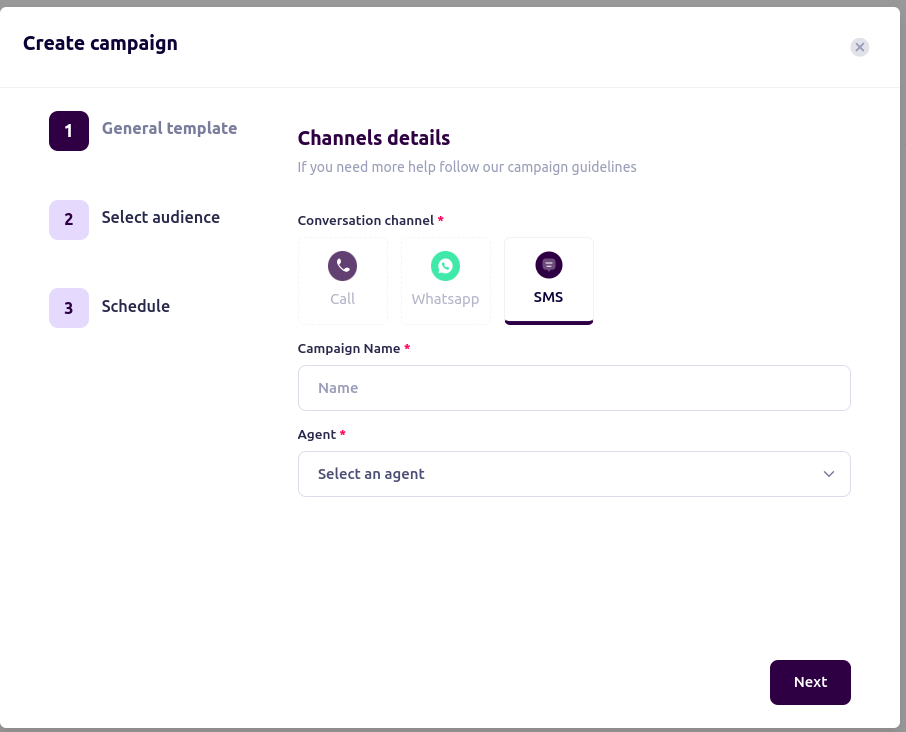
 **Step 2: General Template Setup**
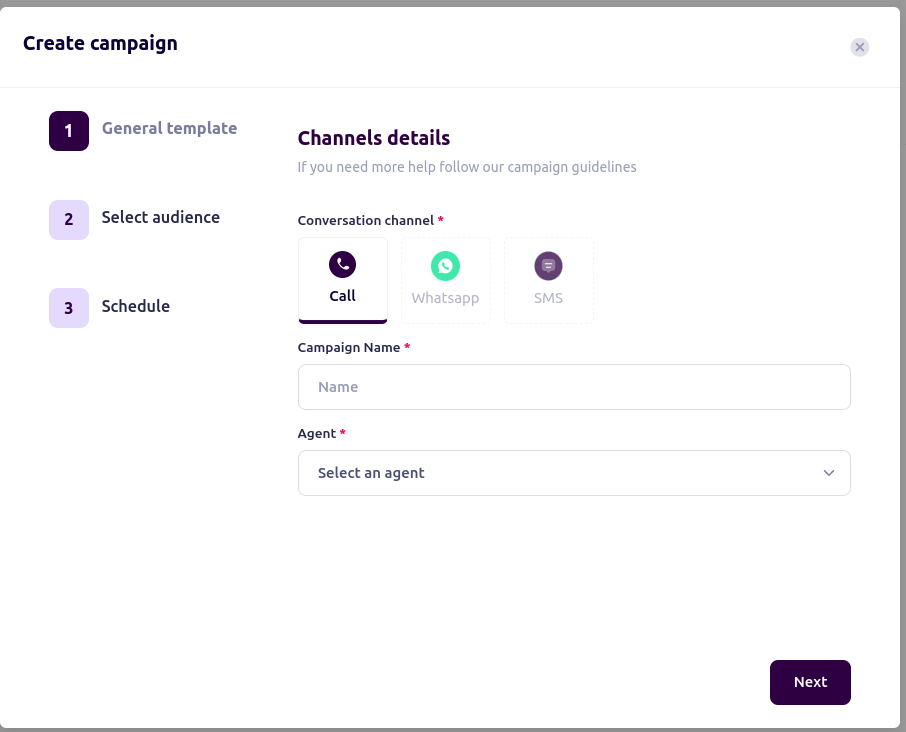
In the "Create Campaign" pop-up, complete the required fields:
* **Conversation Channel:** Choose the channel for your campaign: Call, WhatsApp, or SMS.
*
* **Campaign Name:** Enter a name for your campaign.
*
* **Agent:** Assign an agent responsible for executing the campaign.
**Note:** The fields required might vary depending on the selected channel.
**Step 2: General Template Setup**
In the "Create Campaign" pop-up, complete the required fields:
* **Conversation Channel:** Choose the channel for your campaign: Call, WhatsApp, or SMS.
*
* **Campaign Name:** Enter a name for your campaign.
*
* **Agent:** Assign an agent responsible for executing the campaign.
**Note:** The fields required might vary depending on the selected channel.
 **Step 3: Configure Channel-Specific Details**
**For Calls:**
1. Select **Call** as the conversation channel.
2. Fill in the following details:
* **Campaign Name:** Enter a name for your outbound call campaign.
* **Agent:** Assign the agent who will handle the calls.
3. Click **Next** to proceed to the audience selection step.
### For WhatsApp:
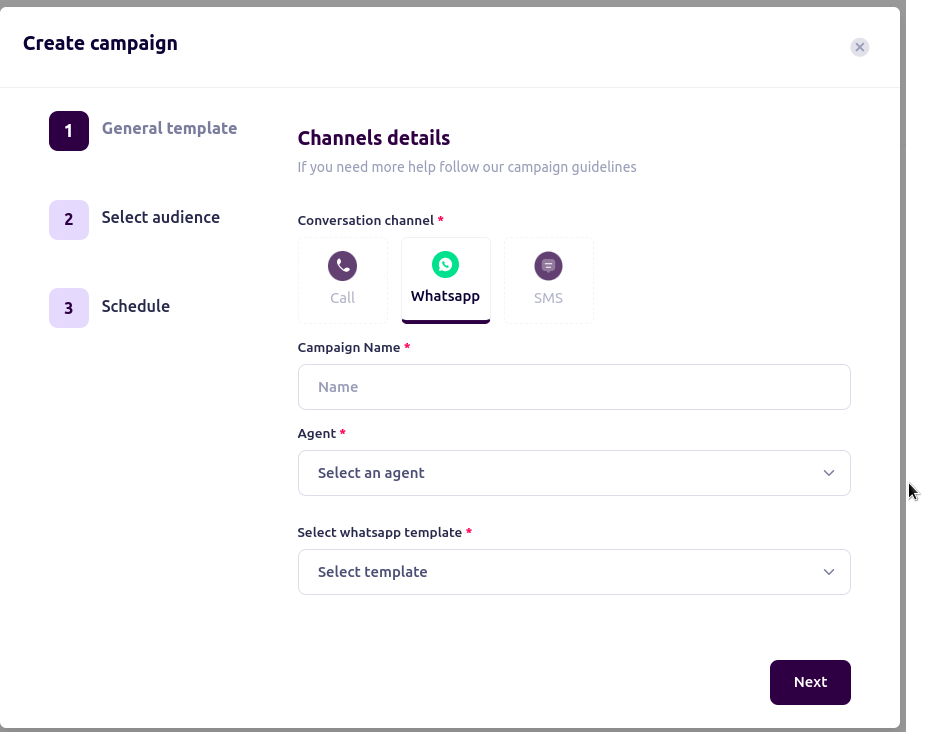
1. Select **WhatsApp** as the conversation channel.
2. Complete the following:
* **Campaign Name:** Provide a name for your WhatsApp campaign.
* **Agent:** Select the agent responsible for this campaign.
* **WhatsApp Template:** Choose a pre-approved WhatsApp template for the campaign.
3. Click **Next** to configure the audience and schedule.
**Step 3: Configure Channel-Specific Details**
**For Calls:**
1. Select **Call** as the conversation channel.
2. Fill in the following details:
* **Campaign Name:** Enter a name for your outbound call campaign.
* **Agent:** Assign the agent who will handle the calls.
3. Click **Next** to proceed to the audience selection step.
### For WhatsApp:
1. Select **WhatsApp** as the conversation channel.
2. Complete the following:
* **Campaign Name:** Provide a name for your WhatsApp campaign.
* **Agent:** Select the agent responsible for this campaign.
* **WhatsApp Template:** Choose a pre-approved WhatsApp template for the campaign.
3. Click **Next** to configure the audience and schedule.
 ### For SMS:
1. Select **SMS** as the conversation channel.
2. Enter the following:
* **Campaign Name:** Provide a title for your SMS campaign.
* **Agent:** Assign an agent for sending SMS.
3. Click **Next** to move to the next step.
### For SMS:
1. Select **SMS** as the conversation channel.
2. Enter the following:
* **Campaign Name:** Provide a title for your SMS campaign.
* **Agent:** Assign an agent for sending SMS.
3. Click **Next** to move to the next step.
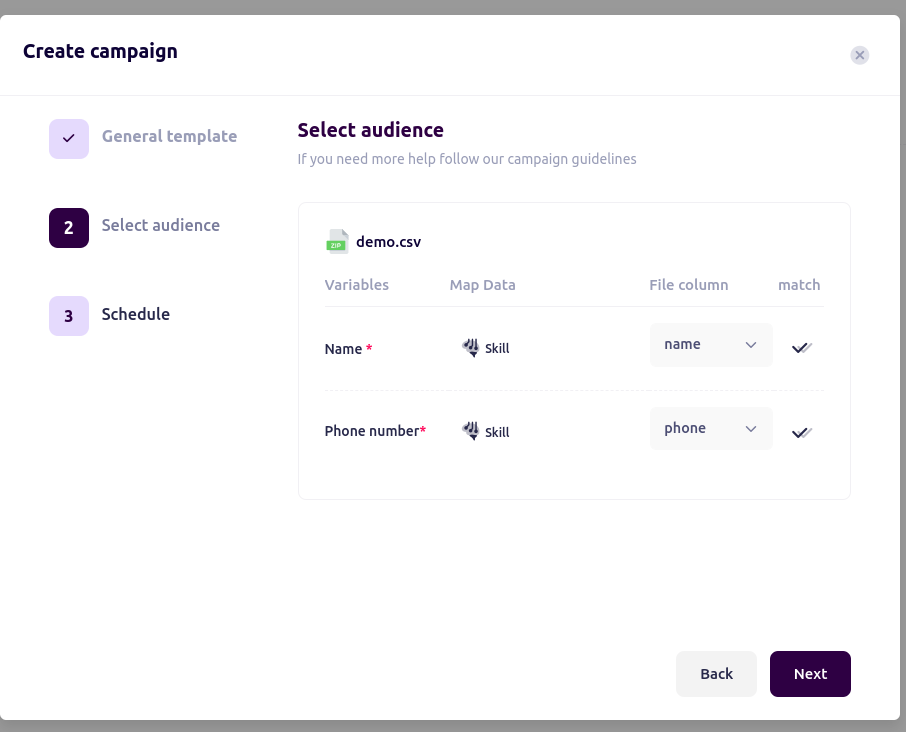
 ### Step 4: Select Audience
1. Upload your audience data (e.g., a .CSV file).
2. Map your data fields to campaign variables:
* **Name:** Match the name column in your file.
* **Phone Number:** Ensure the phone number column is mapped correctly.
Additional variables (e.g., **customerName**, **aiName**) can be mapped for WhatsApp templates.
3. Verify the mappings to ensure accuracy.
4. Click **Next** to proceed
### Step 4: Select Audience
1. Upload your audience data (e.g., a .CSV file).
2. Map your data fields to campaign variables:
* **Name:** Match the name column in your file.
* **Phone Number:** Ensure the phone number column is mapped correctly.
Additional variables (e.g., **customerName**, **aiName**) can be mapped for WhatsApp templates.
3. Verify the mappings to ensure accuracy.
4. Click **Next** to proceed
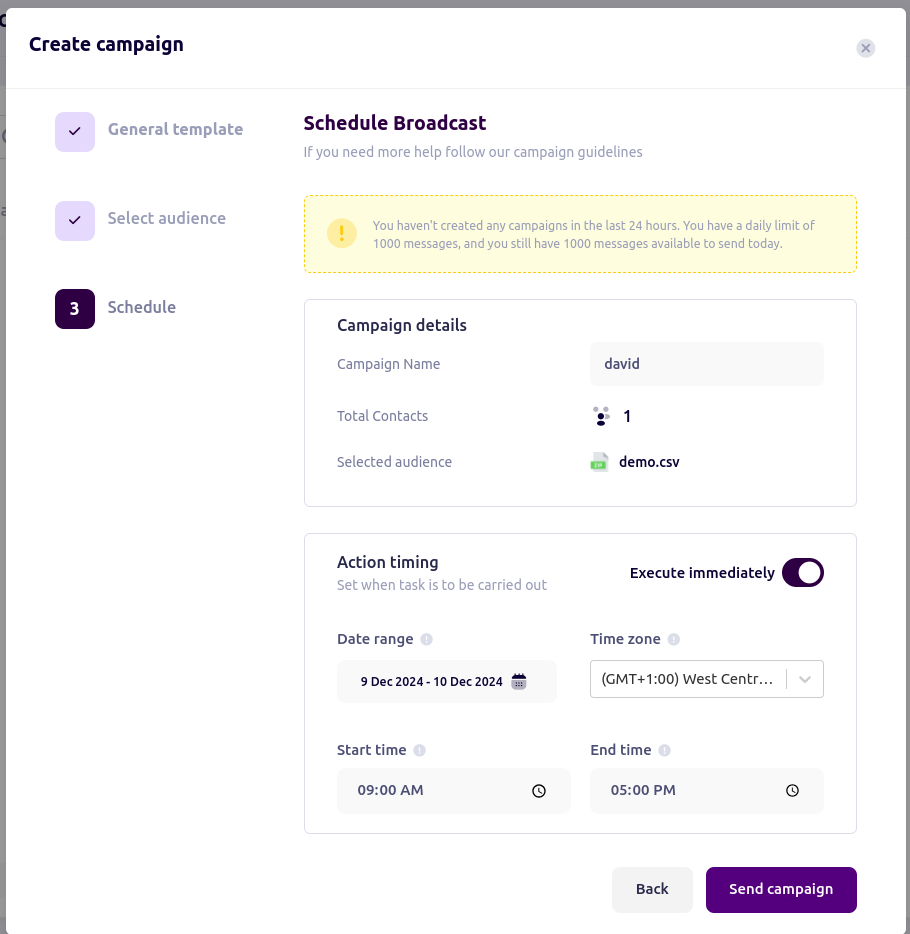
 ### Step 5: Schedule the Campaign
1. Set the preferred date and time for the campaign.
2. Review all configurations to ensure they align with your campaign goals.
3. Click **Send Campaign** to activate your campaign.
### Step 5: Schedule the Campaign
1. Set the preferred date and time for the campaign.
2. Review all configurations to ensure they align with your campaign goals.
3. Click **Send Campaign** to activate your campaign.
 ### Tips for a Successful Campaign
* **Prepare Your Audience Data:** Ensure your audience data file is accurate and complete.
* **Use Approved Templates:** For WhatsApp campaigns, only use pre-approved templates to avoid compliance issues.
* \*\*Test Before Launch: \*\*Conduct a test run of your campaign to verify everything works as expected.
* **Monitor Campaign Performance:** Use the analytics feature to track engagement and refine future campaigns.
### Tips for a Successful Campaign
* **Prepare Your Audience Data:** Ensure your audience data file is accurate and complete.
* **Use Approved Templates:** For WhatsApp campaigns, only use pre-approved templates to avoid compliance issues.
* \*\*Test Before Launch: \*\*Conduct a test run of your campaign to verify everything works as expected.
* **Monitor Campaign Performance:** Use the analytics feature to track engagement and refine future campaigns.