> ## Documentation Index
> Fetch the complete documentation index at: https://docs.elemente.ai/llms.txt
> Use this file to discover all available pages before exploring further.
# HubSpot Integration
> A comprehensive guide to integrating HubSpot with our system, including step-by-step instructions for setting up pre-call and post-call actions.
## Overview
The **CRM HubSpot Integration** feature allows you to streamline communication and automate key workflows within your organization. By integrating HubSpot into our system, you can perform **Pre-Call** and **Post-Call** actions to enhance customer interactions, manage data efficiently, and improve your team’s productivity.
This guide walks you through the steps to configure HubSpot integration, set up Pre-Call and Post-Call actions, and assign these workflows to your agents.
## Key Benefits of HubSpot Integration:
* **Seamless Connectivity:** Directly connect HubSpot to your system for real-time data syncing.
* **Automated Workflows:** Save time with automated Pre-Call and Post-Call actions, reducing manual effort.
* **Improved Efficiency:** Ensure your agents have all necessary call information readily available.
* **Actionable Insights:** Log key interaction data like call summaries and notes directly to HubSpot.
## How to Set Up HubSpot Integration
### **Step 1: Access the Integration Page**
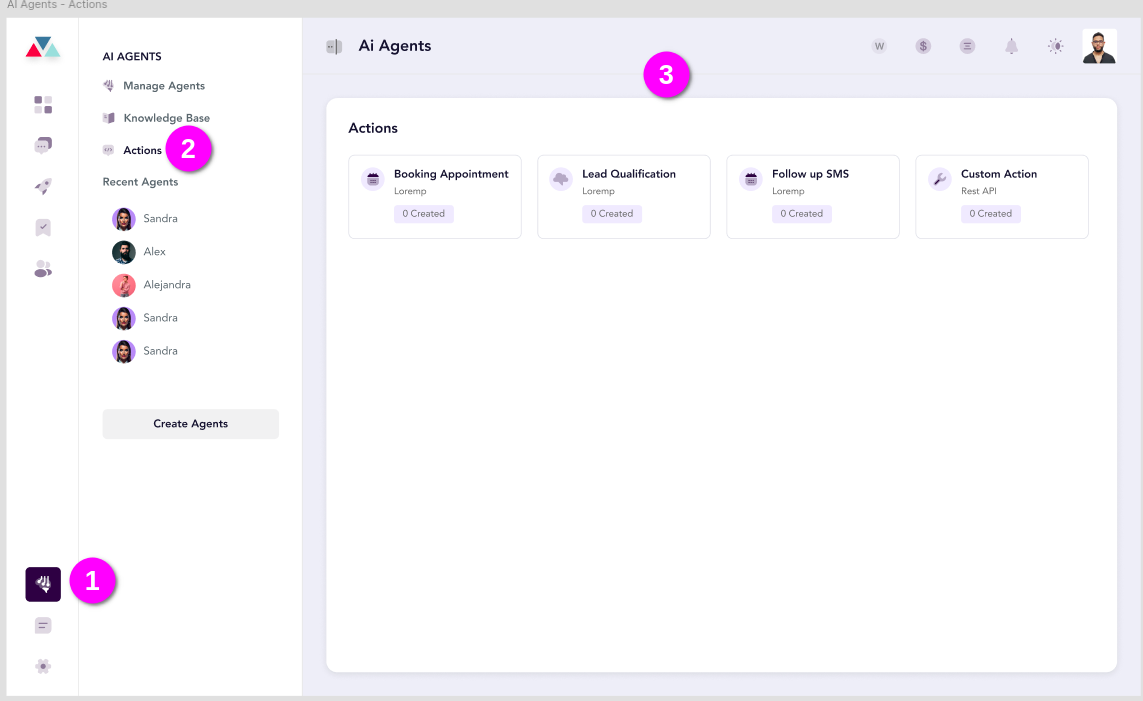
1. Log in to your dashboard.
2. Navigate to the **AI Agents** section on the left-hand menu.
3. Click on **Actions** and select **Custom Action** to begin the integration setup.
 ### **Step 2: Select a Template**
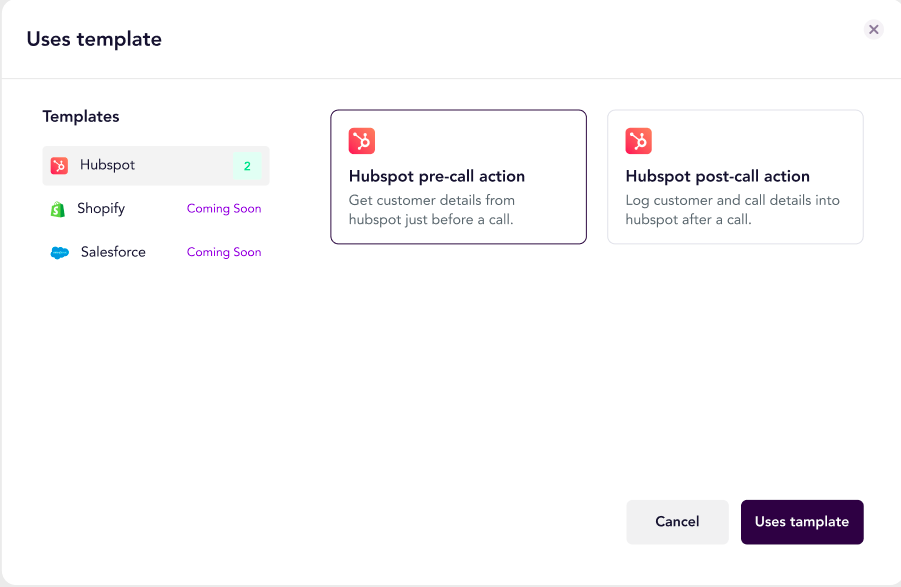
1. Click the **Create Action** button to open the template modal.
2. From the list of available CRMs, select **HubSpot**.
3. Choose one of the following templates based on your workflow:
* **Pre-Call Action:** Automate actions required before a call (e.g., retrieving contact details, preparing interaction summaries).
* **Post-Call Action:** Automate actions to capture details after a call (e.g., logging notes, updating activity records).
4. Click **Use Template** to proceed.
### **Step 2: Select a Template**
1. Click the **Create Action** button to open the template modal.
2. From the list of available CRMs, select **HubSpot**.
3. Choose one of the following templates based on your workflow:
* **Pre-Call Action:** Automate actions required before a call (e.g., retrieving contact details, preparing interaction summaries).
* **Post-Call Action:** Automate actions to capture details after a call (e.g., logging notes, updating activity records).
4. Click **Use Template** to proceed.
 ### **Step 3: Connect to HubSpot**
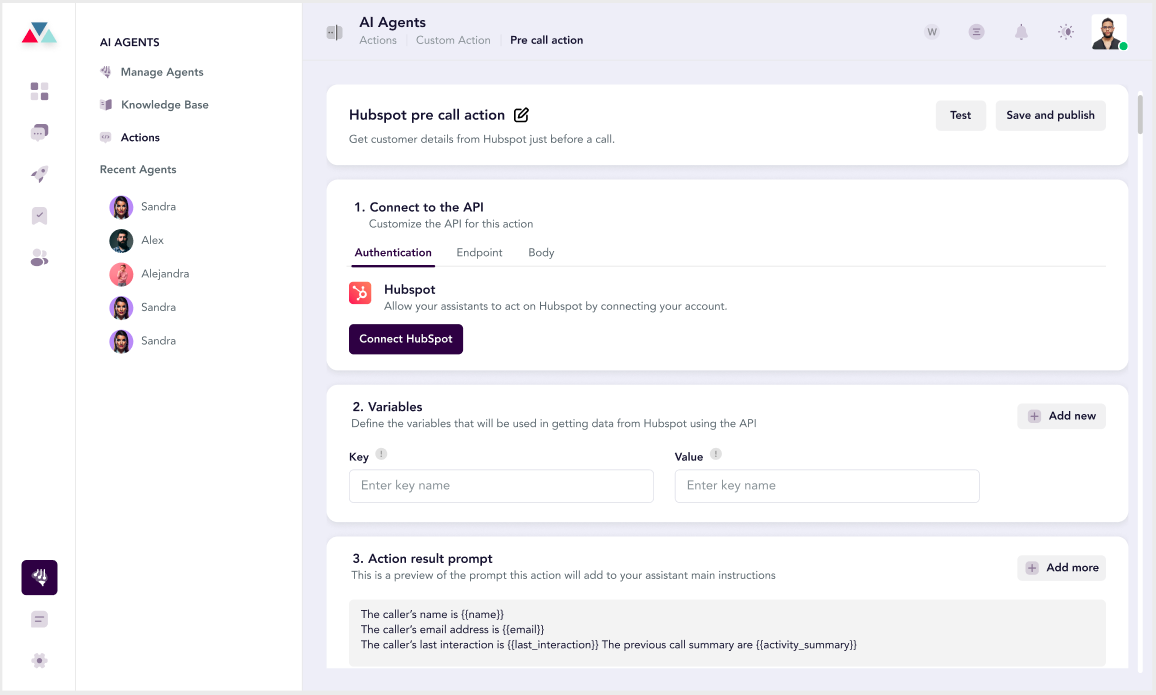
1. On the **Pre-Call** or **Post-Call Action** page, click **Connect HubSpot**.
### **Step 3: Connect to HubSpot**
1. On the **Pre-Call** or **Post-Call Action** page, click **Connect HubSpot**.
 2. A pop-up will appear, listing data points you can integrate with HubSpot:
* Call Summary
* Activity Date (`hs_activity_date`)
* Call Outcome (`hs_call_outcome`)
* HubSpot Ticket ID (`hubspot_ticket_id`)
* Call Notes
2. A pop-up will appear, listing data points you can integrate with HubSpot:
* Call Summary
* Activity Date (`hs_activity_date`)
* Call Outcome (`hs_call_outcome`)
* HubSpot Ticket ID (`hubspot_ticket_id`)
* Call Notes
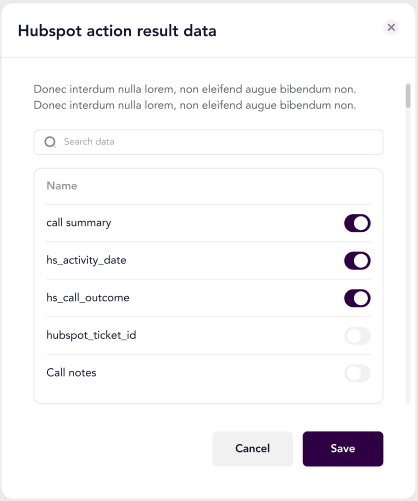 3. Select the data points you want to sync and click **Save**. These will now be available in your HubSpot account.
### **Step 4: Configure Variables (Optional)**
1. Under the **Variables** section, add any custom data keys or values required for your integration.
* For example: `Key = CallerName`, `Value = {{caller_name}}`.
2. Click **Add New** to add additional variables as needed.
### **Step 5: Customize Action Prompts**
1. Use the **Action Result Prompt** section to define what data should be displayed or logged after the action.\
Example:
```javascript Action result prompt Example: theme={null}
The caller's name is {{name}}.
The caller's email address is {{email}}.
The caller's last interaction was on {{last_interaction}}.
The previous call summary is: {{activity_summary}}.
```
2. Click **Add More** if additional prompts are required.
### **Step 6: Test and Save**
1. Click the **Test** button to simulate the action and verify its functionality.
2. Once the test is successful, click **Save and Publish** to activate the integration.
3. Select the data points you want to sync and click **Save**. These will now be available in your HubSpot account.
### **Step 4: Configure Variables (Optional)**
1. Under the **Variables** section, add any custom data keys or values required for your integration.
* For example: `Key = CallerName`, `Value = {{caller_name}}`.
2. Click **Add New** to add additional variables as needed.
### **Step 5: Customize Action Prompts**
1. Use the **Action Result Prompt** section to define what data should be displayed or logged after the action.\
Example:
```javascript Action result prompt Example: theme={null}
The caller's name is {{name}}.
The caller's email address is {{email}}.
The caller's last interaction was on {{last_interaction}}.
The previous call summary is: {{activity_summary}}.
```
2. Click **Add More** if additional prompts are required.
### **Step 6: Test and Save**
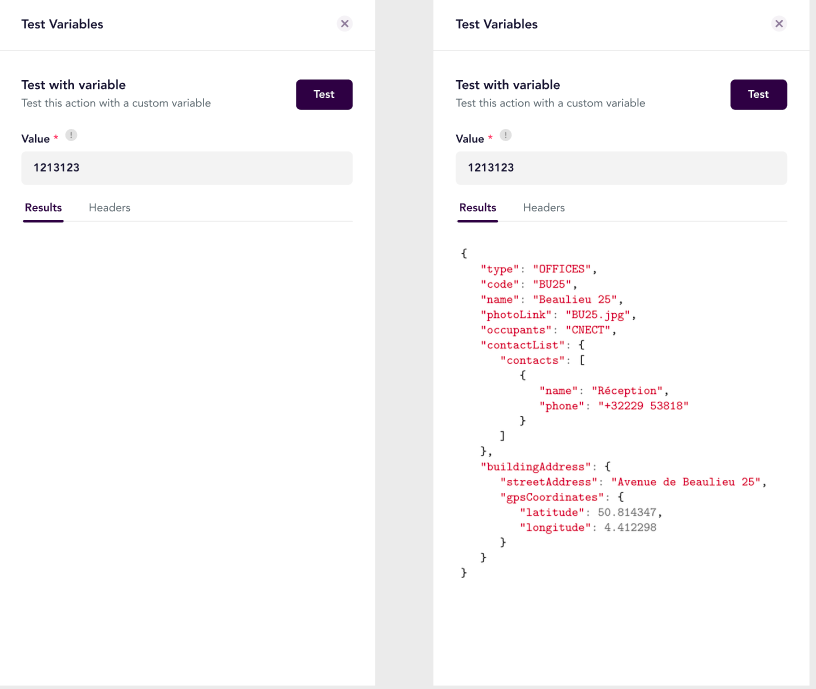
1. Click the **Test** button to simulate the action and verify its functionality.
2. Once the test is successful, click **Save and Publish** to activate the integration.
 ### **Step 7: Assign Actions to Agents**
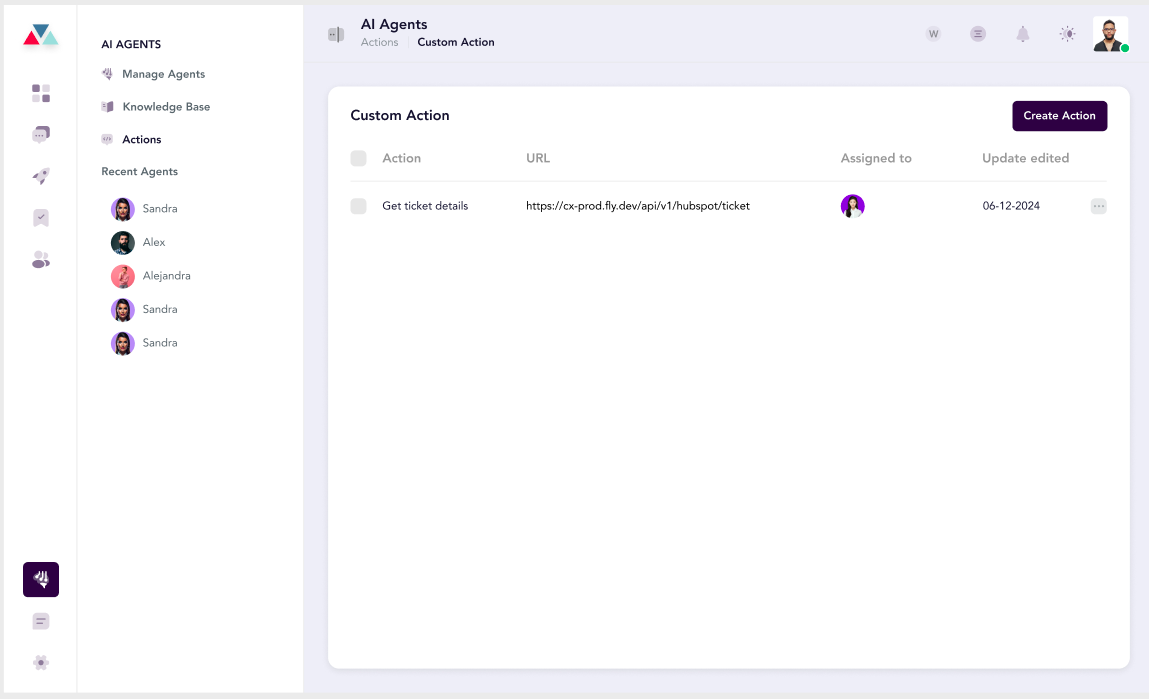
1. Return to the **Actions** page in the **AI Agents** tab.
2. You will see a table listing all configured actions, including Pre-Call and Post-Call workflows.
3. Assign each action to the respective agent by clicking on the **Assign Agent** button next to the action name.
### **Step 7: Assign Actions to Agents**
1. Return to the **Actions** page in the **AI Agents** tab.
2. You will see a table listing all configured actions, including Pre-Call and Post-Call workflows.
3. Assign each action to the respective agent by clicking on the **Assign Agent** button next to the action name.
 ## Use Cases for Pre-Call and Post-Call Actions
### **Pre-Call Action**
Use this workflow to prepare agents before a customer interaction. It retrieves key information such as:
* Contact details
* Last interaction summary
* Relevant notes\
This ensures agents are equipped with context for the call.
### **Post-Call Action**
Automate the documentation process after a call. Log the following data into HubSpot automatically:
* Call outcomes
* Notes from the conversation
* Next steps or follow-ups\
This helps your team maintain consistent records and save time on manual updates.
## Tips for a Successful Integration
* **Verify Data Mapping:** Ensure all selected data points are correctly mapped to HubSpot fields.
* **Test Before Publishing:** Run a test for each template to confirm the integration works as expected.
* **Use Consistent Prompts:** Define clear and concise prompts for consistent data logging.
* **Monitor Usage:** Regularly check the actions table to ensure all workflows are assigned and utilized by your agents.
## Use Cases for Pre-Call and Post-Call Actions
### **Pre-Call Action**
Use this workflow to prepare agents before a customer interaction. It retrieves key information such as:
* Contact details
* Last interaction summary
* Relevant notes\
This ensures agents are equipped with context for the call.
### **Post-Call Action**
Automate the documentation process after a call. Log the following data into HubSpot automatically:
* Call outcomes
* Notes from the conversation
* Next steps or follow-ups\
This helps your team maintain consistent records and save time on manual updates.
## Tips for a Successful Integration
* **Verify Data Mapping:** Ensure all selected data points are correctly mapped to HubSpot fields.
* **Test Before Publishing:** Run a test for each template to confirm the integration works as expected.
* **Use Consistent Prompts:** Define clear and concise prompts for consistent data logging.
* **Monitor Usage:** Regularly check the actions table to ensure all workflows are assigned and utilized by your agents.