> ## Documentation Index
> Fetch the complete documentation index at: https://docs.elemente.ai/llms.txt
> Use this file to discover all available pages before exploring further.
# WhatsApp Template
> Guide to configuring WhatsApp for business messaging.
## Overview
WhatsApp integration enables system users to connect their business phone numbers to WhatsApp via Meta, allowing AI agents to send and receive messages seamlessly. By configuring a WhatsApp sender, businesses can automate customer interactions, manage templates for predefined messages, and assign numbers to AI agents for efficient communication.
## Setting Up WhatsApp
### 1. Navigate to WhatsApp Settings
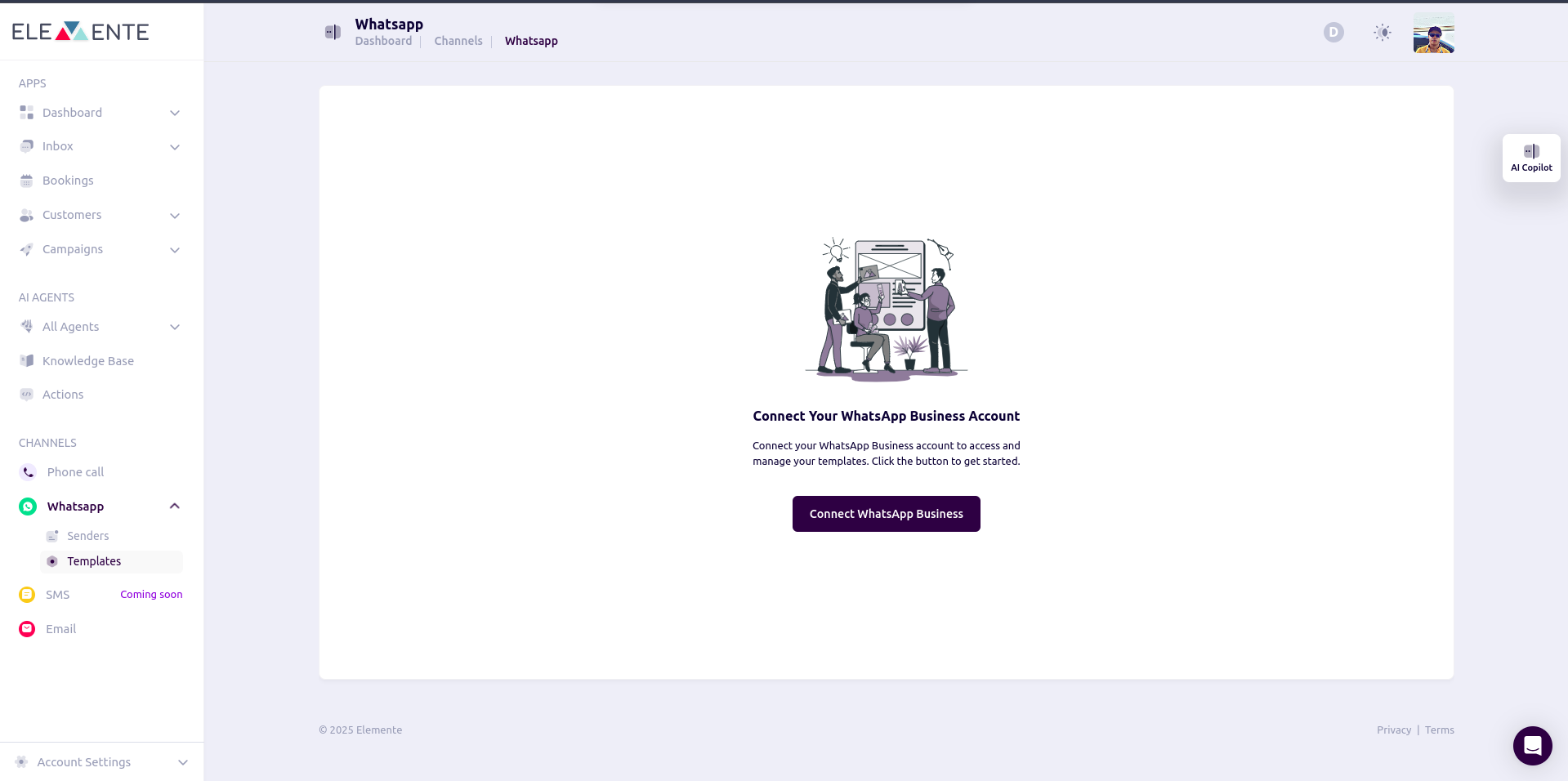
* On the **General Sidebar**, click **WhatsApp**.
* In the dropdown, you'll find **Senders** and **Templates**.
 ### 2. Understanding WhatsApp Configuration
#### **Senders**
To configure your business number for WhatsApp, you need to:
1. Connect your business number to Meta.
2. Pass the required verification steps.
3. Once configured, the agent can send and receive WhatsApp messages.
**Note:** Ensure your **Facebook Business Account** is verified before proceeding.
## Sender Configuration
### Steps to Connect a WhatsApp Business Number:
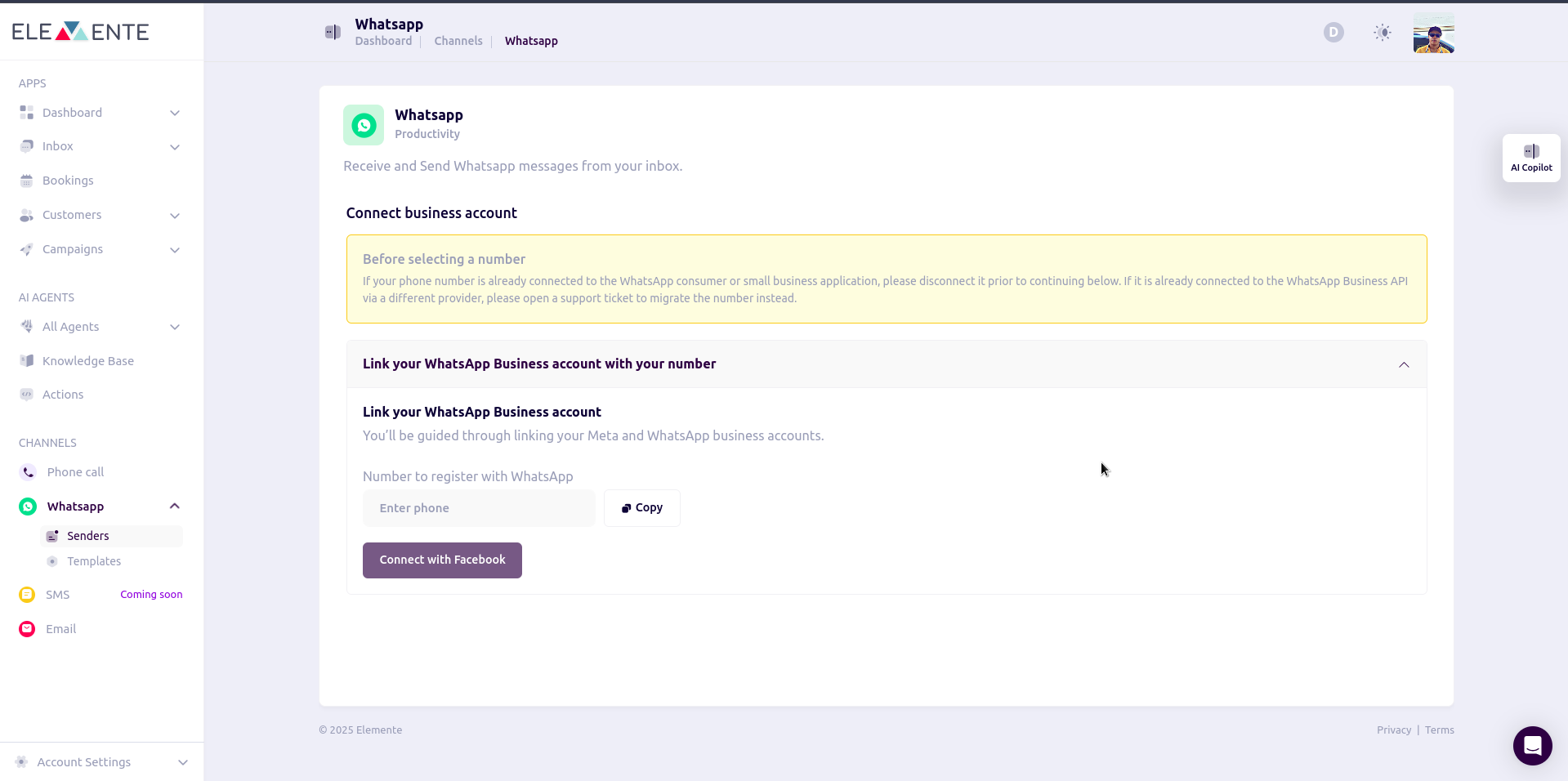
1. Navigate to the **Sender** page.
2. Click **Connect New Account**.
3. Enter your business phone number in the **Phone Number** input field.
4. Click **Connect to Facebook** for Meta verification.
5. Follow the prompts to authenticate your Facebook account.
6. Enter the token provided by Meta.
### 2. Understanding WhatsApp Configuration
#### **Senders**
To configure your business number for WhatsApp, you need to:
1. Connect your business number to Meta.
2. Pass the required verification steps.
3. Once configured, the agent can send and receive WhatsApp messages.
**Note:** Ensure your **Facebook Business Account** is verified before proceeding.
## Sender Configuration
### Steps to Connect a WhatsApp Business Number:
1. Navigate to the **Sender** page.
2. Click **Connect New Account**.
3. Enter your business phone number in the **Phone Number** input field.
4. Click **Connect to Facebook** for Meta verification.
5. Follow the prompts to authenticate your Facebook account.
6. Enter the token provided by Meta.
 ### Viewing Connected Numbers
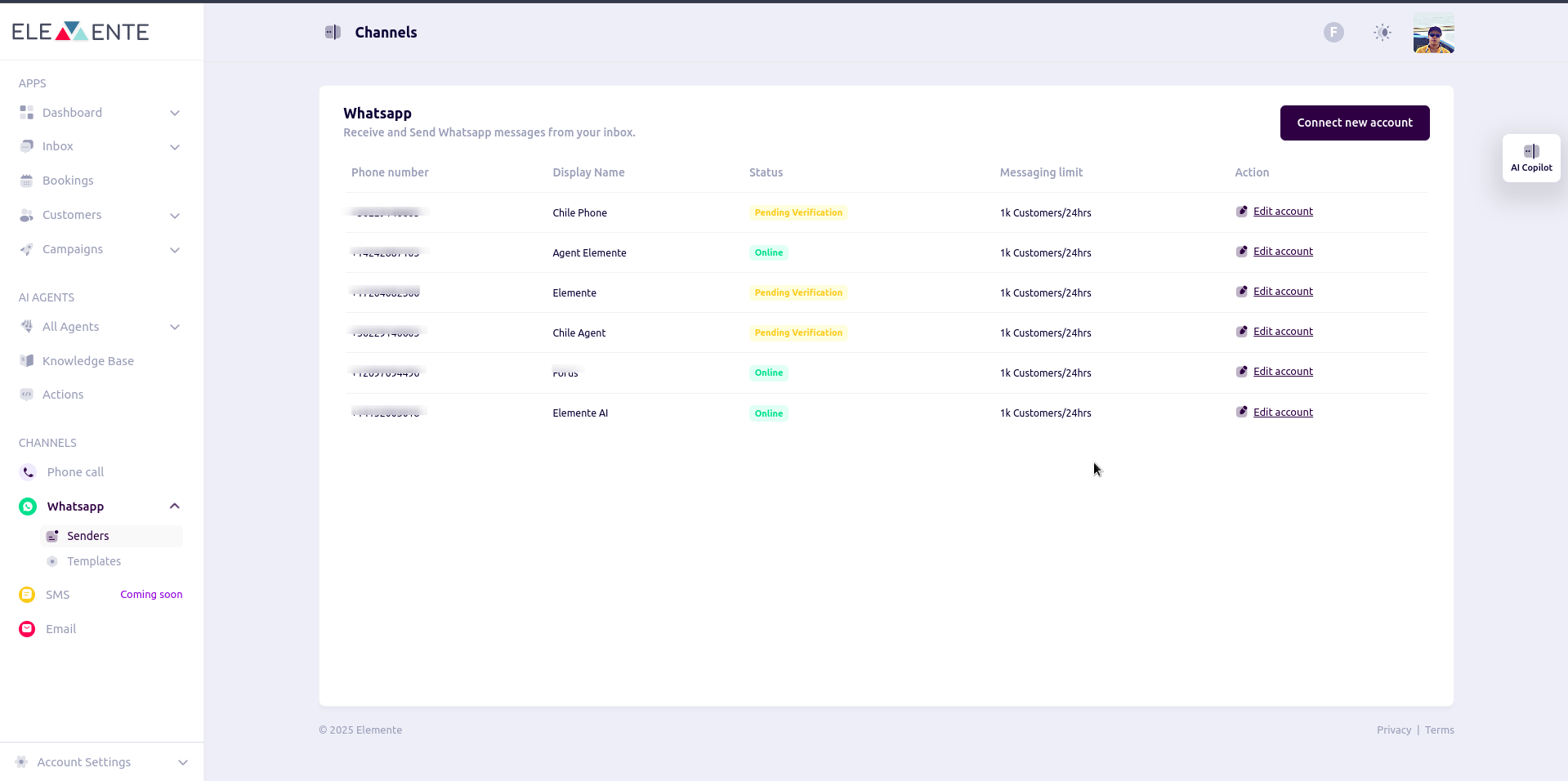
Your connected numbers will appear in a table with the following details:
| Phone Number | Display Name | Status | Messaging Limit | Actions |
| ------------ | ------------ | ------ | --------------- | ------- |
* **Phone Number:** The registered number.
* **Display Name:** Name associated with the number.
* **Status:** Indicates if the number is active or pending verification.
* **Messaging Limit:** Displays the message sending limit.
* **Actions:** Allows you to edit the account details.
### Actions:
Clicking the **Action** button allows you to update business details:
* **Business Display Name**
* **Phone Number**
* **Business Website** (e.g., `https://www.yourcompany.com`)
* **Business Email** (e.g., `support@yourcompany.com`)
* **Business Address**
* **Description**
After making updates, click **Save** to apply the changes.
### Viewing Connected Numbers
Your connected numbers will appear in a table with the following details:
| Phone Number | Display Name | Status | Messaging Limit | Actions |
| ------------ | ------------ | ------ | --------------- | ------- |
* **Phone Number:** The registered number.
* **Display Name:** Name associated with the number.
* **Status:** Indicates if the number is active or pending verification.
* **Messaging Limit:** Displays the message sending limit.
* **Actions:** Allows you to edit the account details.
### Actions:
Clicking the **Action** button allows you to update business details:
* **Business Display Name**
* **Phone Number**
* **Business Website** (e.g., `https://www.yourcompany.com`)
* **Business Email** (e.g., `support@yourcompany.com`)
* **Business Address**
* **Description**
After making updates, click **Save** to apply the changes.
 ***
## Creating a WhatsApp Template
Before creating a WhatsApp template, your phone number must first be approved by Meta.
### Creating a Template
Creating a template has two methods:
1. **Using a Preloaded Template**
2. **Creating from Scratch**
## **1. Creating from a Preloaded Template**
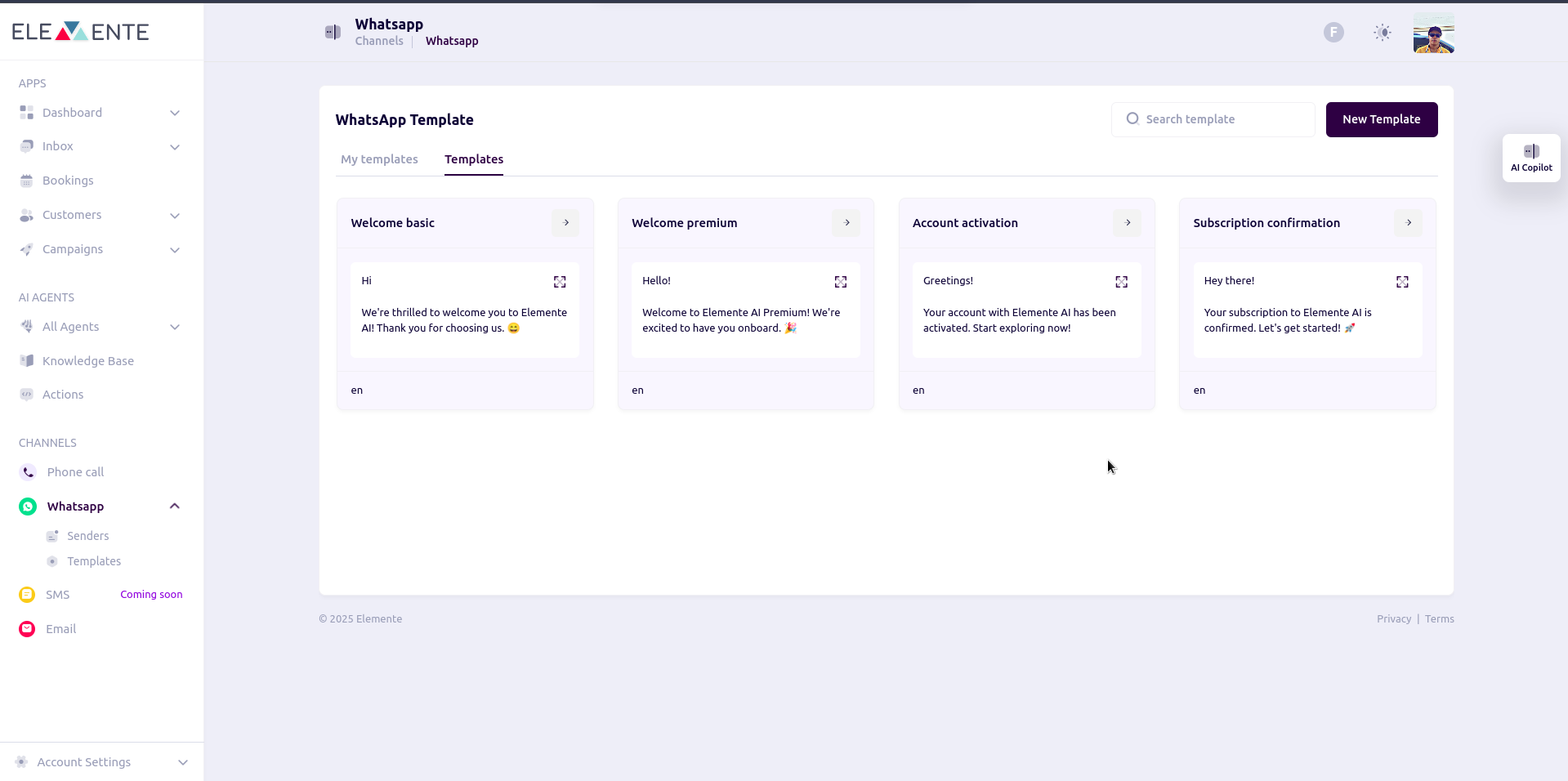
Select from preloaded templates and modify them to suit your needs.
***
## Creating a WhatsApp Template
Before creating a WhatsApp template, your phone number must first be approved by Meta.
### Creating a Template
Creating a template has two methods:
1. **Using a Preloaded Template**
2. **Creating from Scratch**
## **1. Creating from a Preloaded Template**
Select from preloaded templates and modify them to suit your needs.
 ## **2. Creating a New Template**
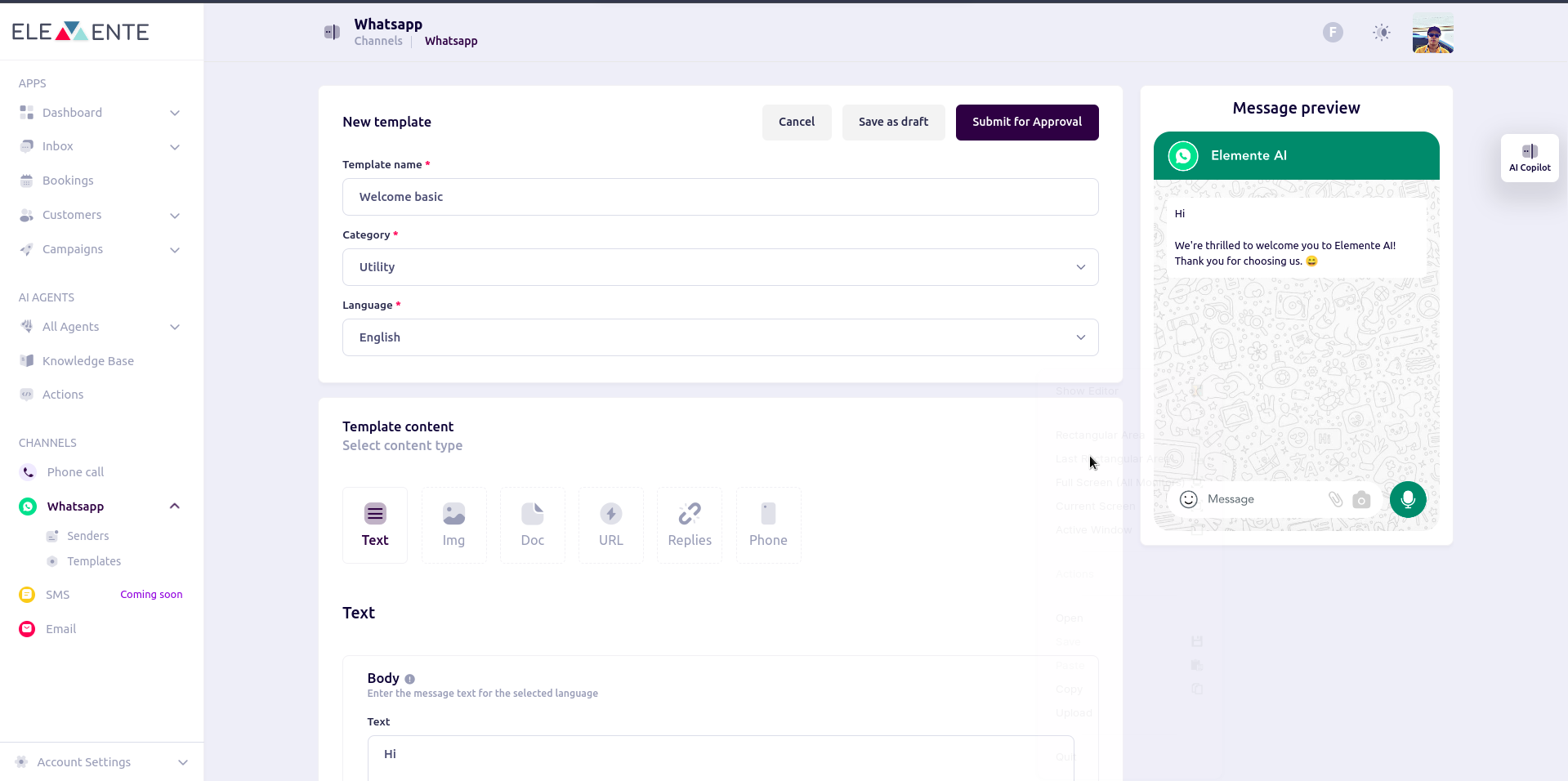
After selecting a preloaded template or starting from scratch, you need to enter the required template details:
### **Inputting Template Details**
* **Template Name** – A unique name for your template.
* **Category** – Choose the category (e.g., Utility, Marketing, Transactional).
* **Language** – Select the language for the template.
* **Template Content** – Choose the content type:
* Text
* Image
* Document
* URL
* Quick Replies
* Phone
* **Body** – Enter the main message text for the selected language.
* **Variables** – Define placeholders that allow dynamic content insertion when sending messages. Variables help personalize messages by dynamically replacing specific sections with real-time data, such as customer names, order details, or appointment times.
For more details on setting up variables, check the [Variables Guide](/guide/variables).
* **Message Preview** – A real-time preview of how the message will appear on WhatsApp.
At the top, you can choose to **Submit for Approval** or **Save as Draft**.
## **2. Creating a New Template**
After selecting a preloaded template or starting from scratch, you need to enter the required template details:
### **Inputting Template Details**
* **Template Name** – A unique name for your template.
* **Category** – Choose the category (e.g., Utility, Marketing, Transactional).
* **Language** – Select the language for the template.
* **Template Content** – Choose the content type:
* Text
* Image
* Document
* URL
* Quick Replies
* Phone
* **Body** – Enter the main message text for the selected language.
* **Variables** – Define placeholders that allow dynamic content insertion when sending messages. Variables help personalize messages by dynamically replacing specific sections with real-time data, such as customer names, order details, or appointment times.
For more details on setting up variables, check the [Variables Guide](/guide/variables).
* **Message Preview** – A real-time preview of how the message will appear on WhatsApp.
At the top, you can choose to **Submit for Approval** or **Save as Draft**.
 ### Submitting Templates
* Choose **Submit for Approval** or **Save as Draft**.
* Approved templates are typically ready within 1 minute.
***
## Assigning WhatsApp Numbers to Agents
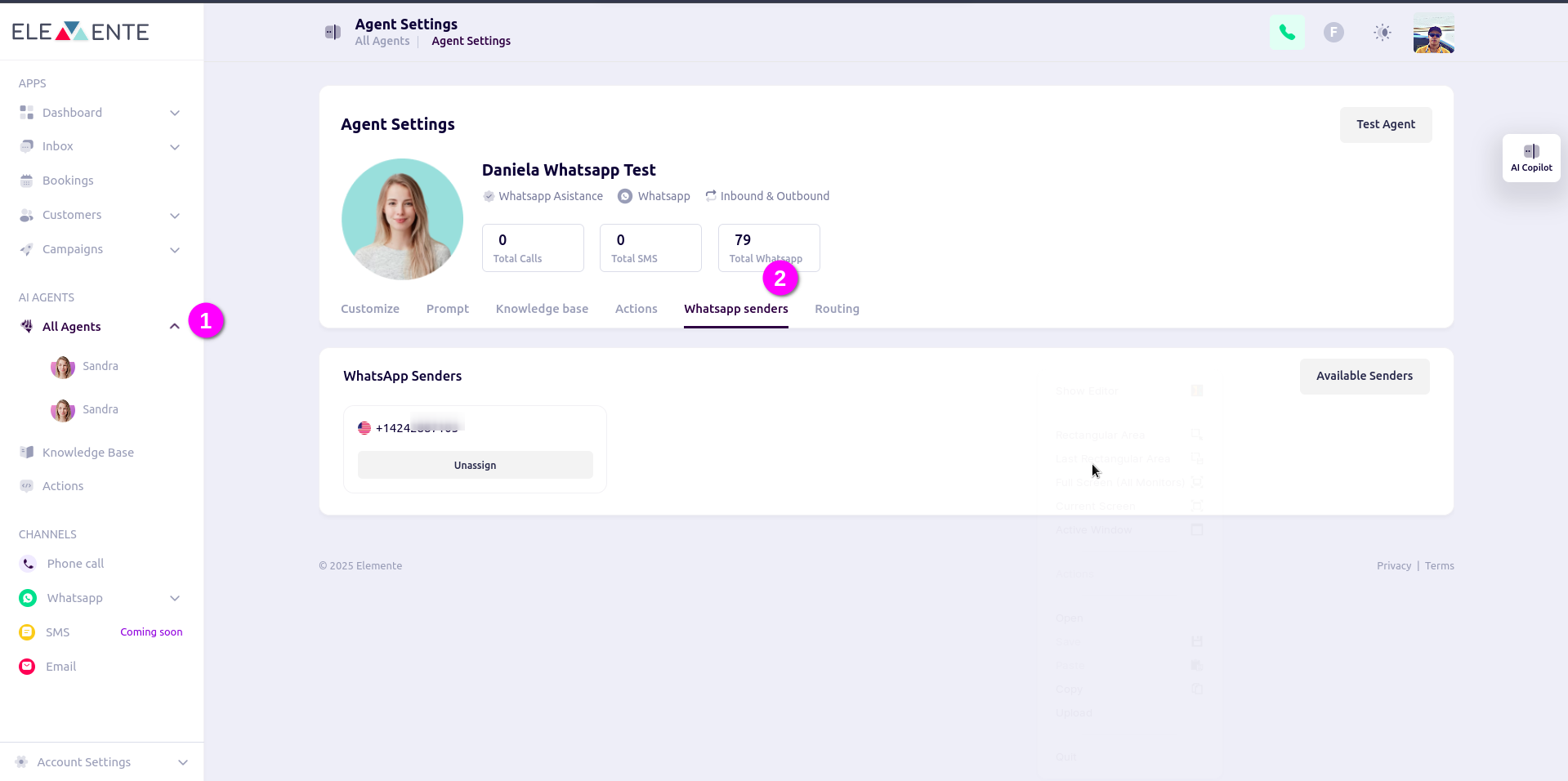
[Follow these steps](/guide/agent#1-choose-a-setup-method) to assign a number to an agent.
### Submitting Templates
* Choose **Submit for Approval** or **Save as Draft**.
* Approved templates are typically ready within 1 minute.
***
## Assigning WhatsApp Numbers to Agents
[Follow these steps](/guide/agent#1-choose-a-setup-method) to assign a number to an agent.
 ## Testing WhatsApp Agents
[Test your WhatsApp agent](/guide/campaign) to verify the setup.
## Testing WhatsApp Agents
[Test your WhatsApp agent](/guide/campaign) to verify the setup.